# How to set up a networked game
**URL:** https://forum.vassalengine.org/t/how-to-set-up-a-networked-game/90005
**Category:** Documentation
**Tags:** tutorial
**Created:** [March 23, 2026, 10:44pm UTC](https://forum.vassalengine.org/t/how-to-set-up-a-networked-game/90005 "2026-03-23T22:44:22Z")
**Posts on this page:** 1
**Page:** 1
### Author:  [@cholmcc](https://forum.vassalengine.org/u/cholmcc)
#### Post date: [March 23, 2026, 10:44pm UTC](https://forum.vassalengine.org/t/how-to-set-up-a-networked-game/90005/1 "2026-03-23T22:44:22Z")
# Network game setup
These are for when you want to run a game either using the central Vassal server or via a private server instance. If you want to run a peer-to-peer game, see [these instructions](https://forum.vassalengine.org/t/how-to-set-up-a-peer-to-peer-game/90004)
# Setup for Vassal central server
Suppose we have two clients **A** and **B** , and two users seek to play the module [Battle for Moscow](https://vassalengine.org/library/projects/battle_for_moscow_cholmcc). Both players should get the _exact same_ version of the module.
> If one want to make absolutely sure, that all players are using the same module, the may exchange checksums of the modules. See [here](https://forum.vassalengine.org/t/how-to-play-by-email-pbem/90008#p-177461-integrity-of-log-files-9) for more on calculating and checking checksums.
> If you want to run a game with more than two players, then follow these instructions duplicating the instructions for client **B** as needed.
To set up a game using the Vassal central server, follow the following procedure.
## On _both_ clients
1. We start the Vassal and load the selected module. When prompted to choose the play mode, we select Look for a game online
2. We then click **Finish**
3. Now the module has been started up, but we have not yet started a game. First, we need to connect the clients to the central server.
4. If already connected to a server, press the _Disconnect_ button 
5. Now _right click_ the server button and select _VASSAL Server_
6. Now click the _Connect_ button 
## _Only_ on client A
1. Create a new room, with a meaning full name - say `BFM`, on the server and press _Create_.
2. You know have a room, which other clients will join in, and where you will play the game.
3. Still on the **A** client, start the game through the _File_→_New Game_ menu entry.
4. Client **A** will be prompted to select a side
5. This will start up the game as per normal.
## _Only_ on client B
1. In the server controls window, _right click_ the room created by client **A** above - here `BFM` - and select _Join Room_
2. Client **B** will be prompted to select a side
## _Both_ clients are now connected
| **A** | **B** |
| --- | --- |
| 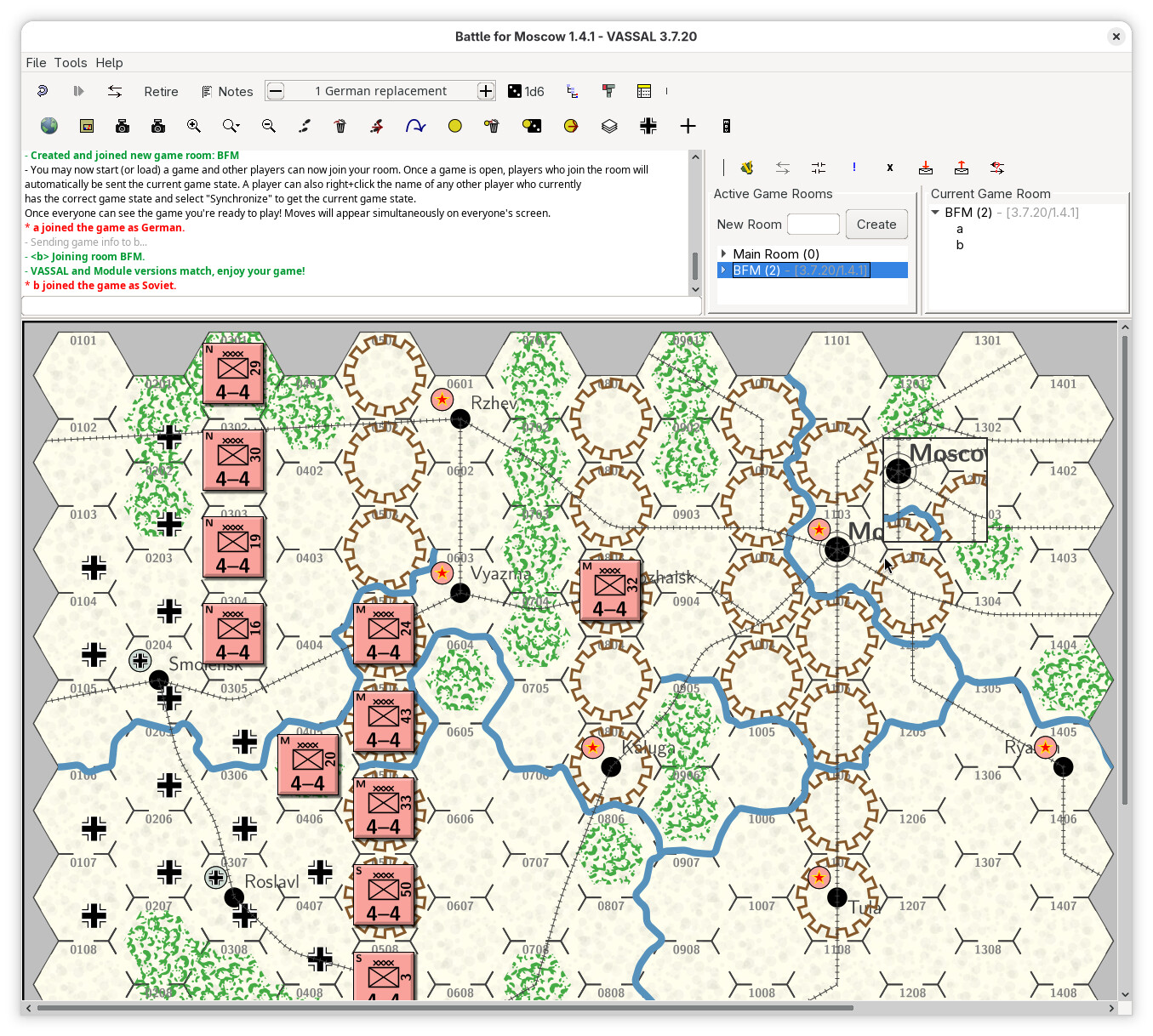 | 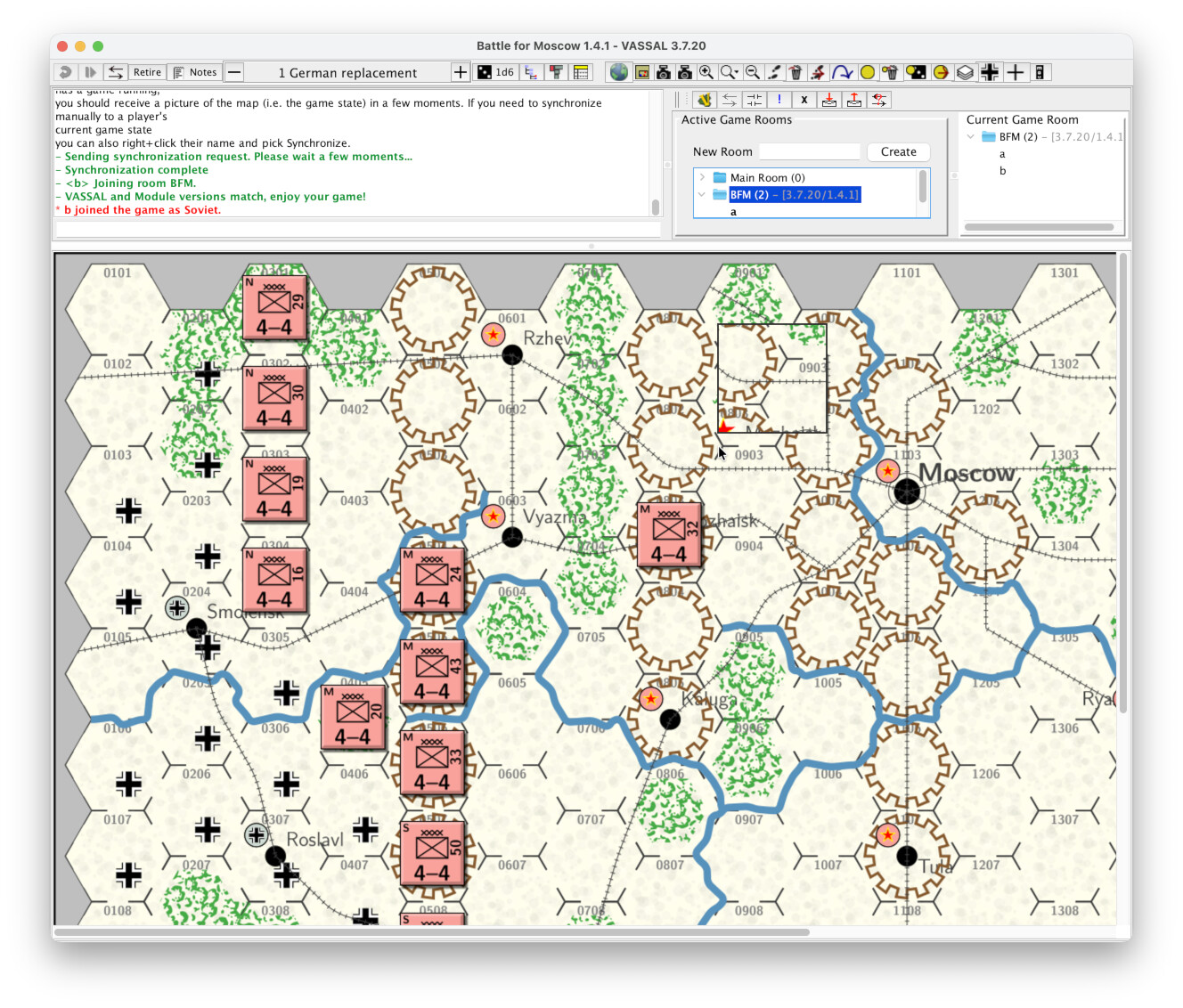 |
You and your follow player can now start to play the game.
Note, if the module uses a _Turn Tracker_, as the module [Battle for Moscow](https://vassalengine.org/library/projects/battle_for_moscow_cholmcc) does, then make sure to use that interface to keep track of the game progress. The module may limit certain actions to certain places in the game, as well as to certain factions. You should consult the module documentation, typically available in the _Help_ menu.
# Setup for private server
As above, we assume two clients **A** and **B** , which wish to play the module [Battle for Moscow](https://vassalengine.org/library/projects/battle_for_moscow_cholmcc)
Furthermore, we will assume that both clients are on the same Local Area Network (LAN).
| Machine | **A** | **B** |
| --- | --- | --- |
| LAN IP | `192.168.1.2` | `192.168.1.3` |
| User | `a` | `b` |
| Password | `a` | `b` |
Note, both clients _could_ be on the same machine. Also, if client **A** has a public facing IP address, then the clients need not be on the same LAN.
## Security considerations
The Vassal server should be considered a security vulnerability. The server listens on an _unprivileged_ port (`5050`), which means it cannot access too many resources on the host. Also, if the server runs as a regular user (as opposed to a privileged user - e.g., `root`), it can likely not access privileged information and only mess up the user it is running as.
However, access to the server is not authorised or authenticated in any way, meaning anyone with access to the host and port can access the server (this is by design to allow anyone to access the central Vassal server).
In short,
- _Do not_ run the server as a privileged user - e.g., `root`
- Stop the server when you no longer need it
- Consider to make a special user for running the service - say `vassald` - and use one of the advanced ways (`systemd` or `launchd`) to run the server.
## _Only_ on client A
1. We need to start our private server. Exactly how this is done depends on the host system.
## On _both_ clients
1. Follow steps 1 through 4 above for the central Vassal server.
2. Now _right click_ the server button and select _Private Server_
3. Click the server button and a new pop-up dialog will appear
4. Now click the _Connect_ button 
5. Now follow steps 7 through 13 above, as for the central server.
## _systemd_ setup
This is _only_ available on  Linux.
We will set-up a [_systemd_](https://github.com/systemd/systemd) service (or _unit_) which makes setting starting and stopping the server much simpler. We will assume that Vassal is installed in `/usr/share/vassal`. If that is not your installation directory, adjust the paths accordingly.
1. Create the directory `~/.config/systemd/user` if it doesn’t exist already
```auto
$ mkdir -p ~/.config/systemd/user
```
2. Create the service unit file `vassal.service` in that directory
```auto
$ touch ~/.config/systemd/user/vassal.service
```
3. Edit `~/.config/systemd/user/vassal.service` to contain
```auto
[Unit]
Description=Vassal network game private server
After=network.target
[Service]
ExecStart=/usr/share/vassal/VASSAL.sh --server
```
If you are using pre-3.7.27, replace the last line above with
```auto
ExecStart=java -cp /usr/share/vassal/lib/Vengine.jar VASSAL.chat.node.Server -URL null
```
Now we have defined our user service. We can now start, stop, and query the service.
- **Start the server** : To start the server, do
```auto
$ systemctl --user start vassal.service
```
- **Stop the server** : To stop the server, do
```auto
$ systemctl --user stop vassal.service
```
- **Get status of server** : To query the status of the server, do
```auto
$ systemctl --user status vassal.service
● vassal.service - Vassal network game private server
Loaded: loaded (/.config/systemd/user/vassal.service; static)
Active: active (running) since ; 16min ago
Invocation: 97b33fee412548deb2629815fdd5907f
Main PID: (java)
Tasks: 25 (limit: 37889)
Memory: 47.3M (peak: 47.8M)
CPU: 471ms
CGroup: /user.slice/user-.slice/user@.service/app.slice/vassal.service
└─ java -cp /usr/share/vassal/lib/Vengine.jar VASSAL.chat.node.Server -URL null
systemd[]: Started vassal.service - Vassal network game private server.
java[]: Started server on port 5050
java[]: Sent keep-alive
```
If you want the server to start up every time you log in, do
```auto
$ systemctl --user enable vassal.service
```
If you want the service to not start when you log in, do
```auto
$ systemctl --user disable vassal.service
```
### Advanced setup - spawn on demand.
1. Make the file `~/.config/systemd/user/vassal.service`
```auto
[Unit]
Description=Vassal network game private server
After=network.target
StopWhenUnneeded=true
[Service]
ExecStart=/usr/share/vassal/VASSAL.sh --server -port 5051
```
If you are using pre-3.7.27, replace the last line with
```auto
ExecStart=java -cp /usr/share/vassal/lib/Vengine.jar VASSAL.chat.node.Server -URL null -port 5051
```
Note the extra command line argument `-port 5051`
2. Make the file `~/.config/systemd/user/proxy-to-vassal.service` with the content
```auto
[Unit]
Description=Proxy for private Vassal server
Requires=vassal.service
After=vassal.service
[Service]
ExecStartPre=sleep 1
ExecStart=/lib/systemd/systemd-socket-proxyd --exit-idle-time=90s localhost:5050
```
3. Make the file `~/.config/systemd/user/proxy-to-vassal.socket` with the content
```auto
[Socket]
ListenStream=5051
[Install]
WantedBy=sockets.target
```
The set-up above works as follows:
1. A user connects to the host on port 5050
2. `systemd` is listening on that port via `proxy-to-vassal.socket`
3. `systemd` will start the service `proxy-to-vassal.service` (same stem name as the `.socket` file) on the connection to the socket, but …
1. … since the service `proxy-to-vassal.service` depends on `vassal.service` it will spawn that first.
2. The Vassal server is started up, but listening on port 5051 (notice the command line argument above)
3. `systemd` then waits 1 second (the `ExecStartPre=sleep 1` above)
4. Then, `systemd` spawns `systemd-socket-proxyd` which will listen on port 5050 and forward all traffic to `localhost:5051` where the Vassal server is listening.
Because we have `StopWhenUnneeded=true` and `--exit-idle-time=90s` the Vassal server will be killed after 90 seconds of inactivity. Note that `--exit-idle-time` should be larger than 1 minute, because that’s the frequency by which the Vassal clients will send a _Keep Alive_ ping to the server.
To start this configuration, do
```auto
$ systemctl --user start proxy-to-vassal.socket
```
(note that we start the socket unit).
To shut down the configuration, do
```auto
$ systemctl --user stop proxy-to-vassal.socket
```
Remember, if you edit a unit, then you should do
```auto
$ systemctl --user daemon-reload
```
to read in the changes.
##  _launchd_ set up
This is only available on  MacOS.
We wil set up a system service that we can start at stop at will.
1. Create the directory `~/Library/LaunchAgents` if it doesn’t exist already
```auto
$ mkdir -p ~/Library/LaunchAgents
```
2. Create the _plist_ configuration file `org.vassalengine.vassal.plist` in that directory
```auto
$ touch ~/Library/LaunchAgents/org.vassalengine.vassal.plist
```
3. Edit ` ~/Library/LaunchAgents/org.vassalengine.vassal.plist` to contain
```auto
Label
org.vassalengine.vassal
ProgramArguments
/Applications/VASSAL.app/Contents/MacOS/jre/bin/java
-classpath
/Applications/VASSAL.app/Contents/Resources/Java/Vengine.jar
VASSAL.chat.node.Server
-URL
null
```
4. Load the service description
```auto
$ launchctl load ~/Library/LaunchAgents/org.vassalengine.vassal.plist
```
We have now set-up the service, and we may start and stop it at any time.
- **Start the server** : To start the server, do
```auto
$ launchctl start org.vassalengine.vassal
```
- **Stop the server** : To stop the server, do
```auto
$ launchctl stop org.vassalengine.vassal
```
- **Query the server** : To query the status of the server, do
```auto
$ launchctl list org.vassalengine.vassal
```
### Spawn on request
In principle, it is possible for MacOS to spawn the server on request, just like for Linux above. One would add the lines
```auto
Sockets
Listeners
SockNodeName
127.0.0.1
SockServiceName
5050
SockProtocol
TCP
```
to the above `.plist` file. However, this assumes that the Vassal server can create a listening socket from an existing file descriptor - which it cannot. To get around that problem for Linux, we set up a proxy (`systemd-socket-proxyd`). However, it is not clear how such a proxy would be set-up on MacOS.