Play by E-Mail (PBEM)
Two players, A and B, want to play the module Battle for Moscow by means of email.
Both player A and B
- Both players should download the same version of Vassal from the download page, and
install it on their machines. - Then, both players should download the same version of the module.
Only player A
-
Player A loads the module it into the Vassal module manager.
This is of course done by File→Open Module… and then navigate to the downloaded
.vmodfile. -
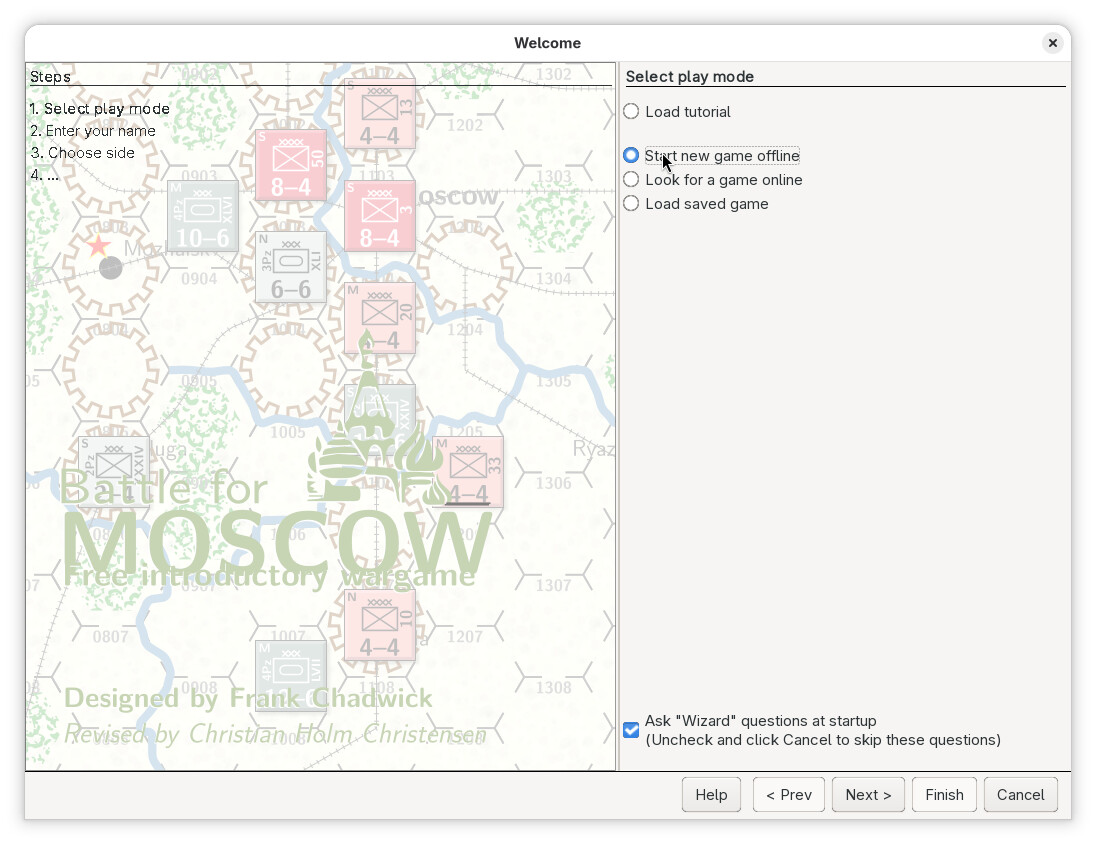
Player A will be presented with a welcome screen.
Here, choose Start new game offline and then press Next.
-
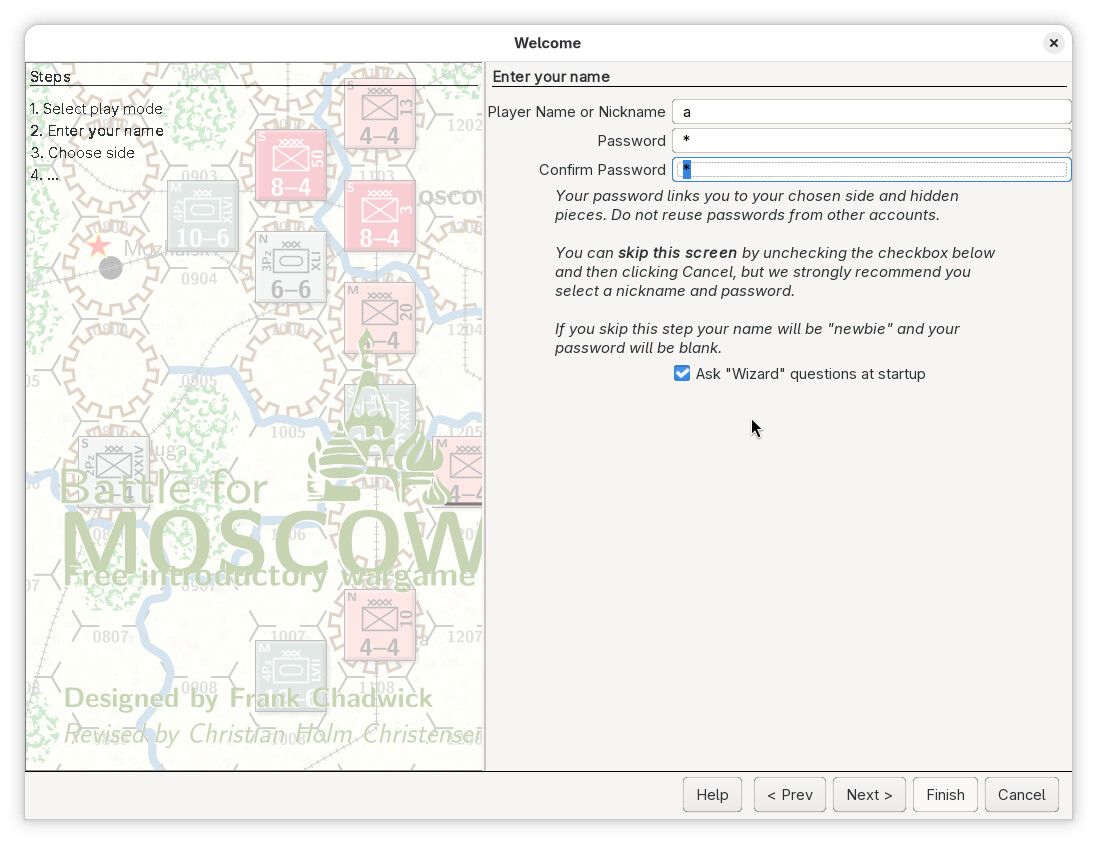
Next, a user name and password screen will appear
There a three text inputs.
- Player Name or Nickname: The name or nickname that will be used for the player. This name will be shown in the log messages. For player A we choose the name
a. - Passowrd: The password to protect the logs and moved by player A. This should not be left empty, and must be unique between the players, as this is what uniquely identifies a player. Here, we will choose the password
a - Confirm Password: The same as above - we choose
a, as it must_ match the above.
After entering the information, press Next
- Player Name or Nickname: The name or nickname that will be used for the player. This name will be shown in the log messages. For player A we choose the name
-
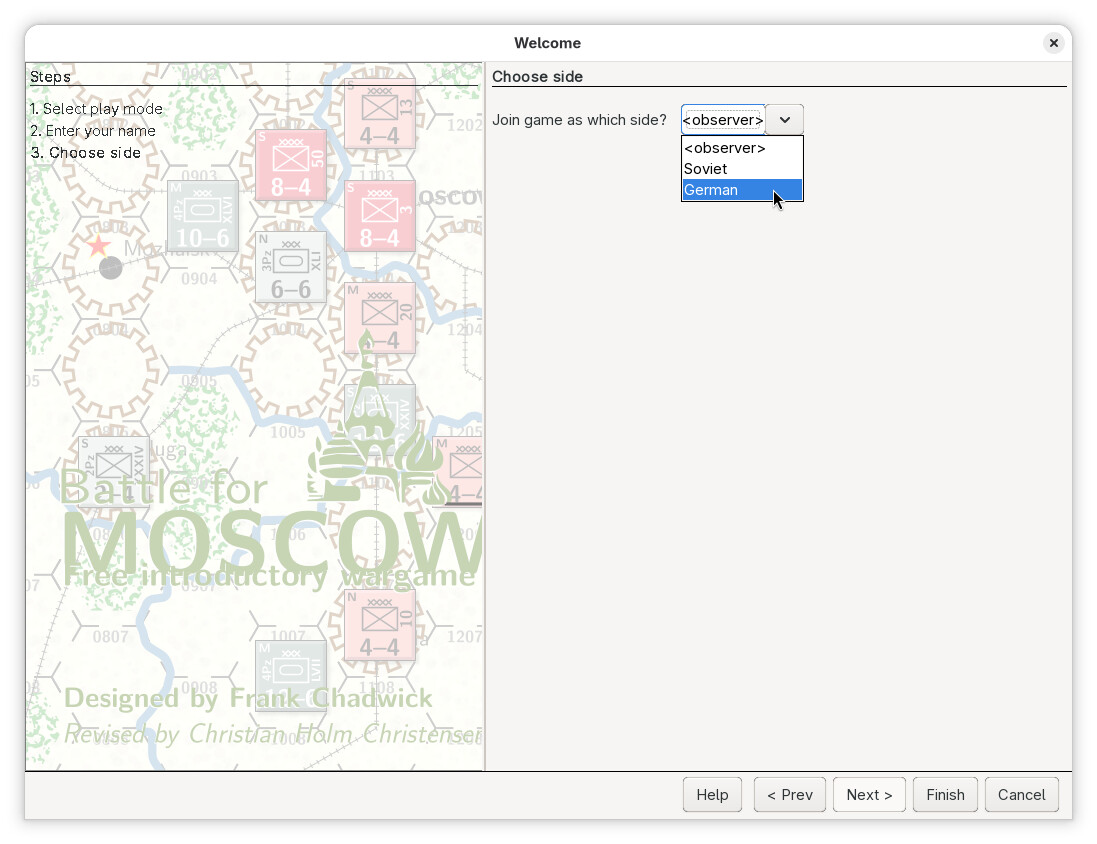
Player A is now presented with a screen to choose the side (or faction) to play.
The side will be tied to the password chosen above, for the entire game.
We choose the German faction because that is the faction that is in turn first in the game. Then we press Finish.
-
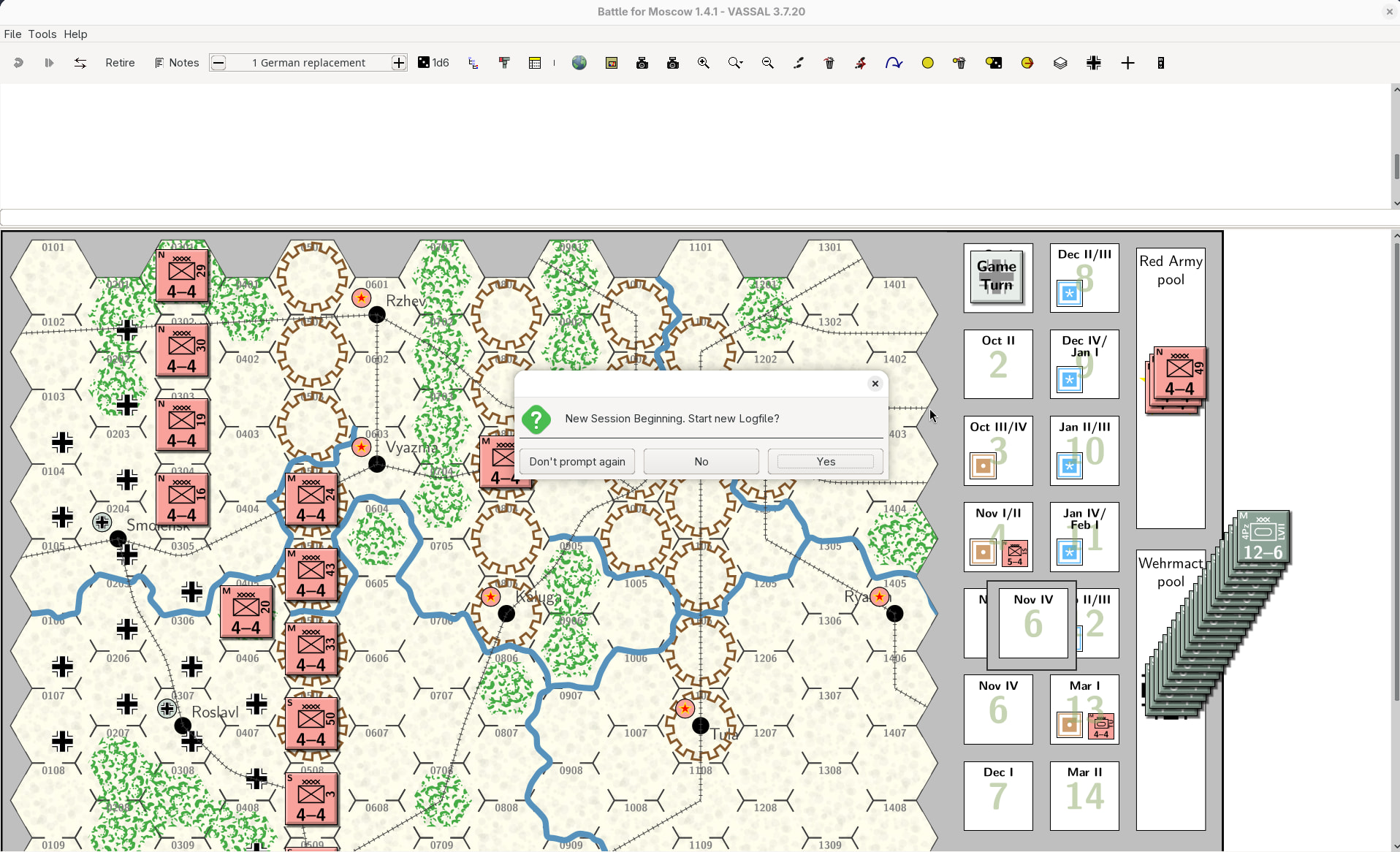
Now the module will be loaded in earnest, and player A is prompted by a pop-up dialog to start a new log file.
-
Press Yes
-
Select a file to save the log to. It could be for example
GermanTurn1.vlog.(it often makes sense to store the logs and saves in a sub-directory next to the module - in our case, that could be the
sub-directoryAvsB). -
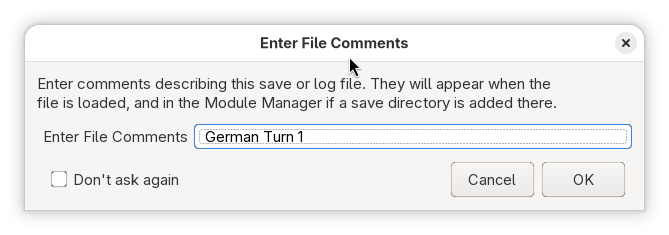
A dialog will pop-up asking for an comment on the log. You do not need to enter anything here, but it can make sense if you use Vassal method for organising log and save files.
Here, we enter the comment
German Turn 1, and then press OK.
If you did not see pop-up dialog asking to start a new log file, then use File→Begin Logfile… to start a log file. You will be presented with the same choices as above.
We are new recording all the moves we do in the log file. We will use that to send our moves to player B later on.
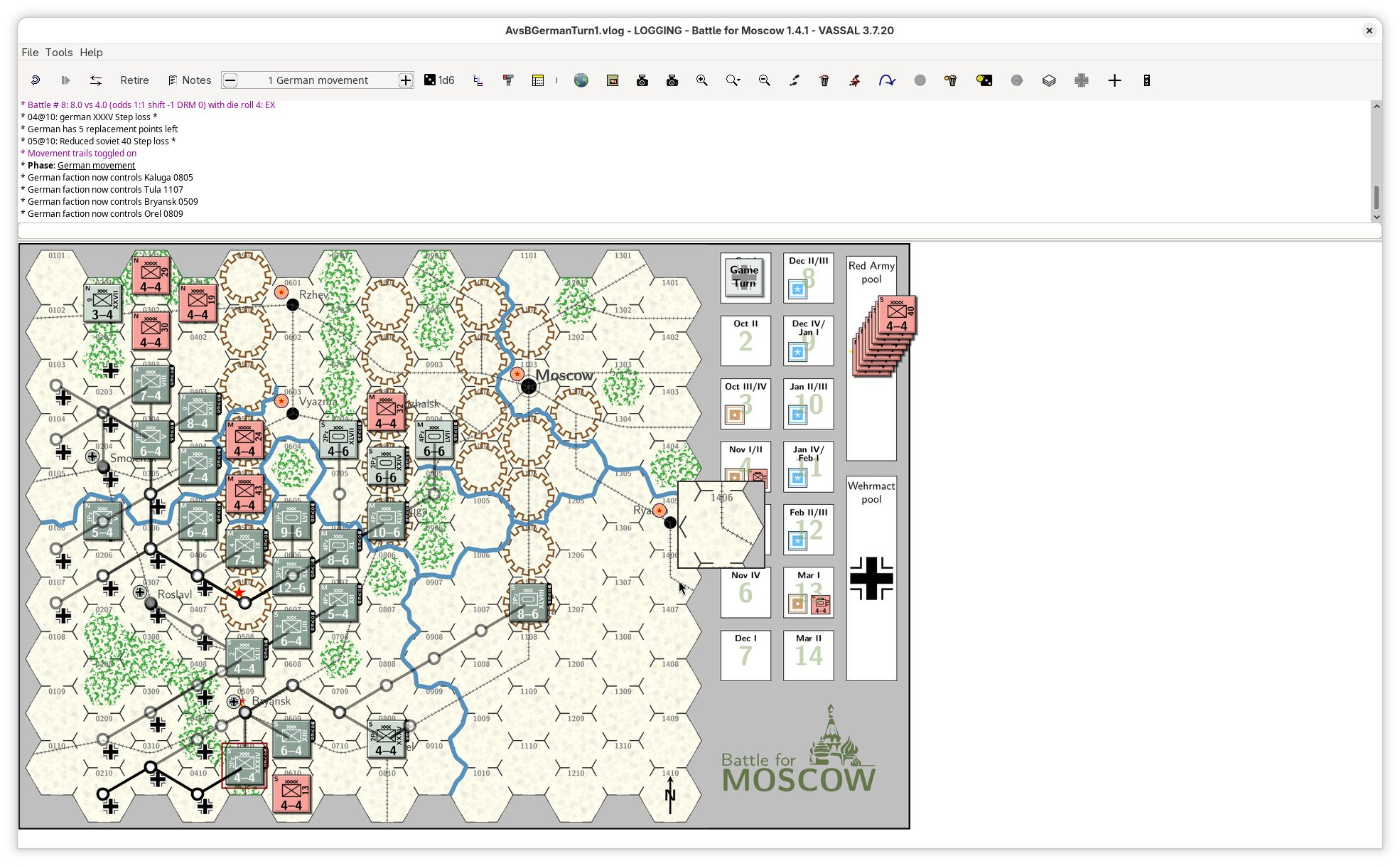
As the German faction, player A now performs the German part of the turn.
If, at any point, player B must make a choice, then player A should immediately end the recording into the log file, send the log file to player B, so that player B can make those choices. Player B will then send back a new log that player A loads and can then continue its turn. More about these steps a little later.
In this game, however, the German faction does not require any interaction with player B and can thus complete its turn.
During the turn, the German faction may move pieces, execute commands, draw or play cards, and so on. The player may add comments or annotations be entering text, followed by pressing
Return, into the chat prompt.If the module, like Battle for Moscow does, has a turn tracker interface, then the player should make sure to progress through the relevant steps using that interface.
-
-
Once the turn has been completed, player A ends the recording via File→End Logfile
-
Player A has now completed its portion of the game, and may end the game via File→Close Game, or close the game entirely with File→Quit. Player A may also opt to leave the game running, but should not do any moves or the like.
-
Player A then locates the saved log - in our case
GermanTurn1.vlog- on the machine, and shares that with player B.The file can be shared by any number or means:
- Send it as an attachment in an email
- Upload to a shared folder in some cloud service (Google Drive, OneDrive, iCloud, NextCloud, etc.)
- Some other sharing service (SCP, Bluetooth, AirDrop, etc.)
Only player B
-
When player B receives the log file - in our case
GermanTurn1.vlog, it should be placed in some meaningful location.It can make sense to place it in a sub-directory - say
AvsB- next to the module file. -
Now player B loads the module into the Vassal Module Manager.
This is of course done by File→Open Module… and then navigate to the downloaded
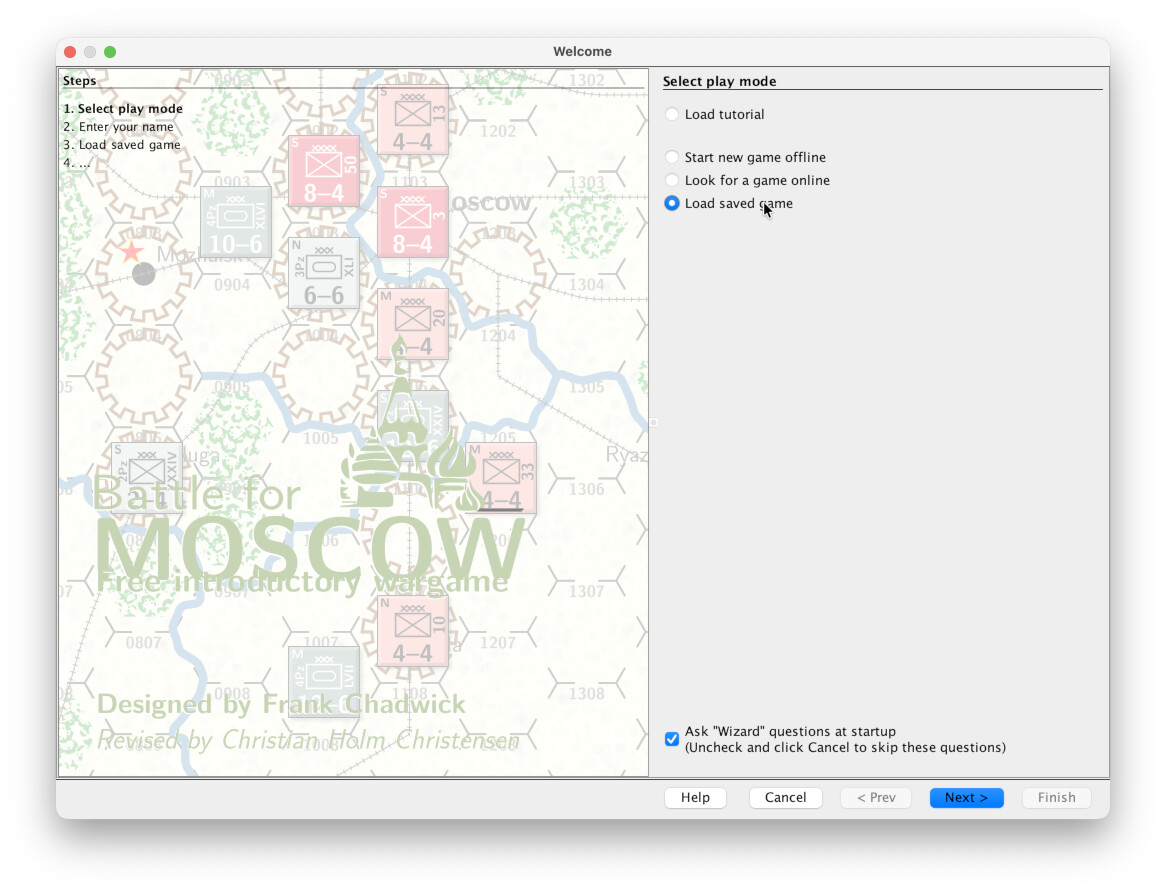
.vmodfile, and player B will be prompted with a game mode screen.Select Load saved game and press Next.
On most platforms - with the notable exception of MacOSX - on may also open the
.vlogfile using the systems way of opening a file (typically double-click the file in some sort of file-browser).On some systems, one may also be able to drag a log file on to an already running instance of a module.
In all of these cases, step 14 below will be skipped.
-
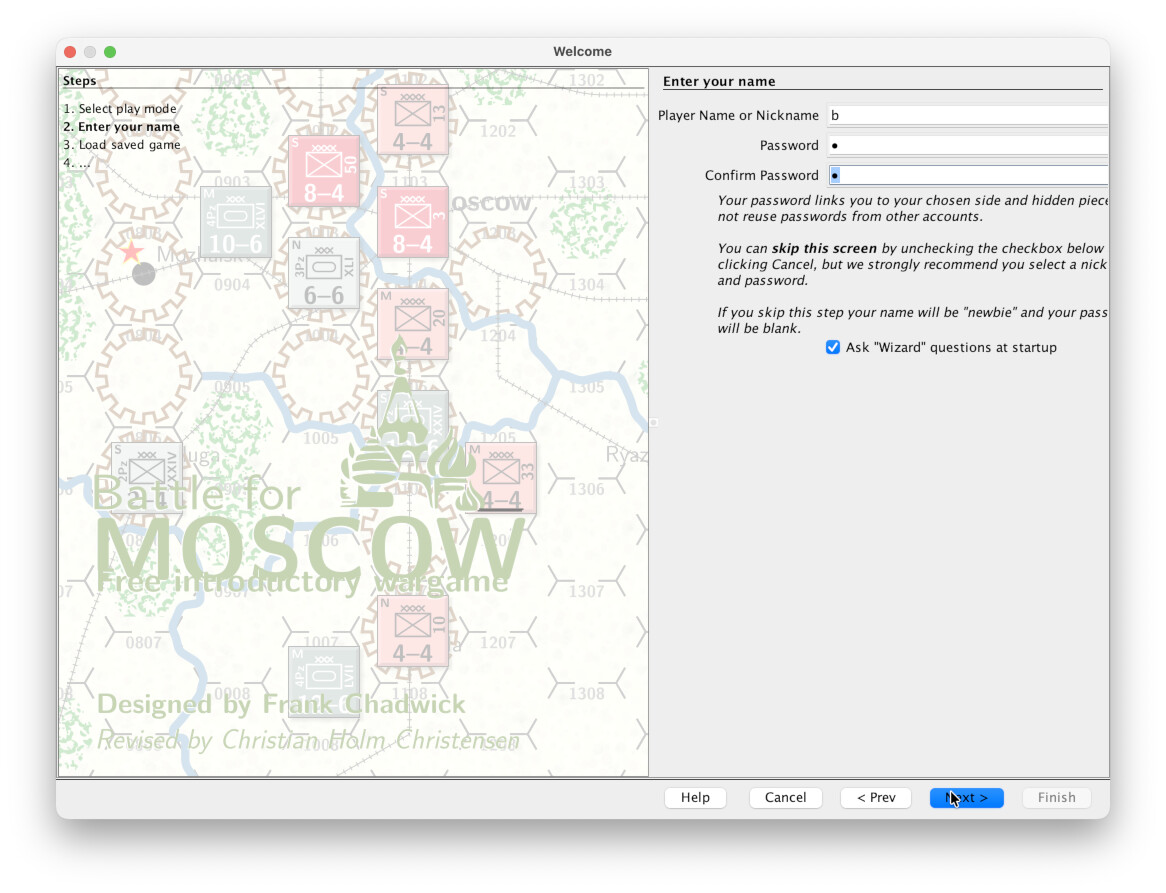
Player B will now be asked to enter user information.
As in step 5 above, there are three text inputs.
- Player Name or Nickname: The name or nickname that will be used for the player. This name will be shown in the log messages. For player B we choose the name
b. - Passowrd: The password to protect the logs and moved by player B. This should not be left empty, and must be unique between the players, as this is what uniquely identifies a player. Here, we will choose the password
b - Confirm Password: The same as above - we choose
b, as it must match the above.
After entering the information, press Next
- Player Name or Nickname: The name or nickname that will be used for the player. This name will be shown in the log messages. For player B we choose the name
-
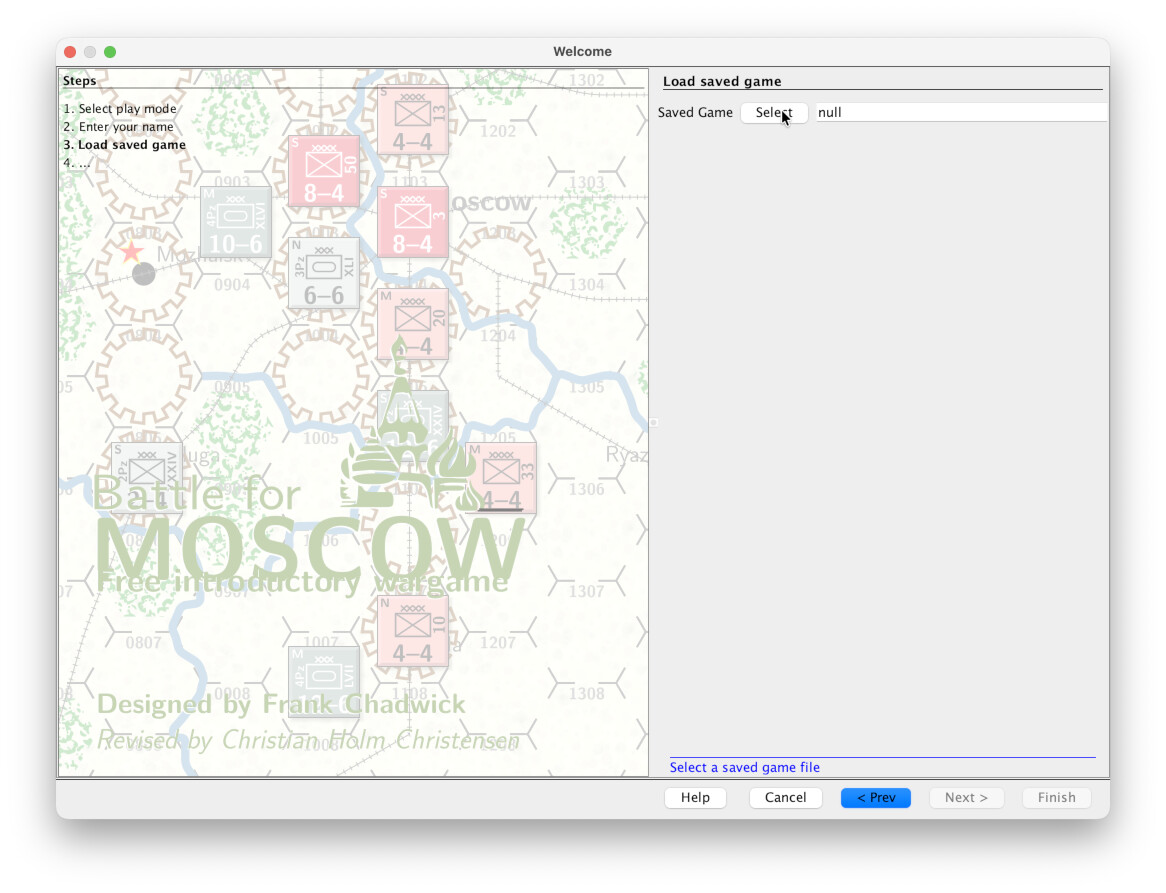
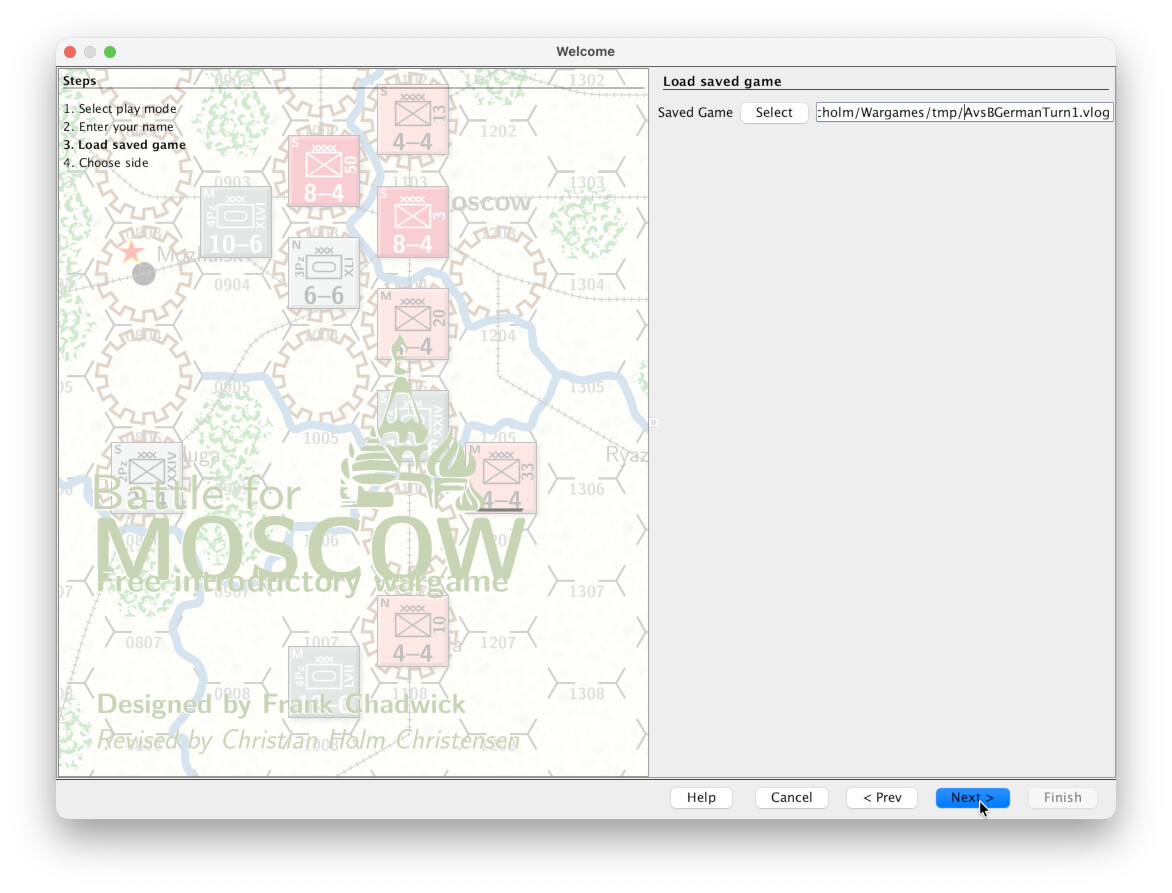
Player B is now prompted to specify the file. Press the Select button
Navigate to the file and press OK.
When the file is selected, it may take a little time for Vassal to load the file. When the Next button is ready, press it.
-
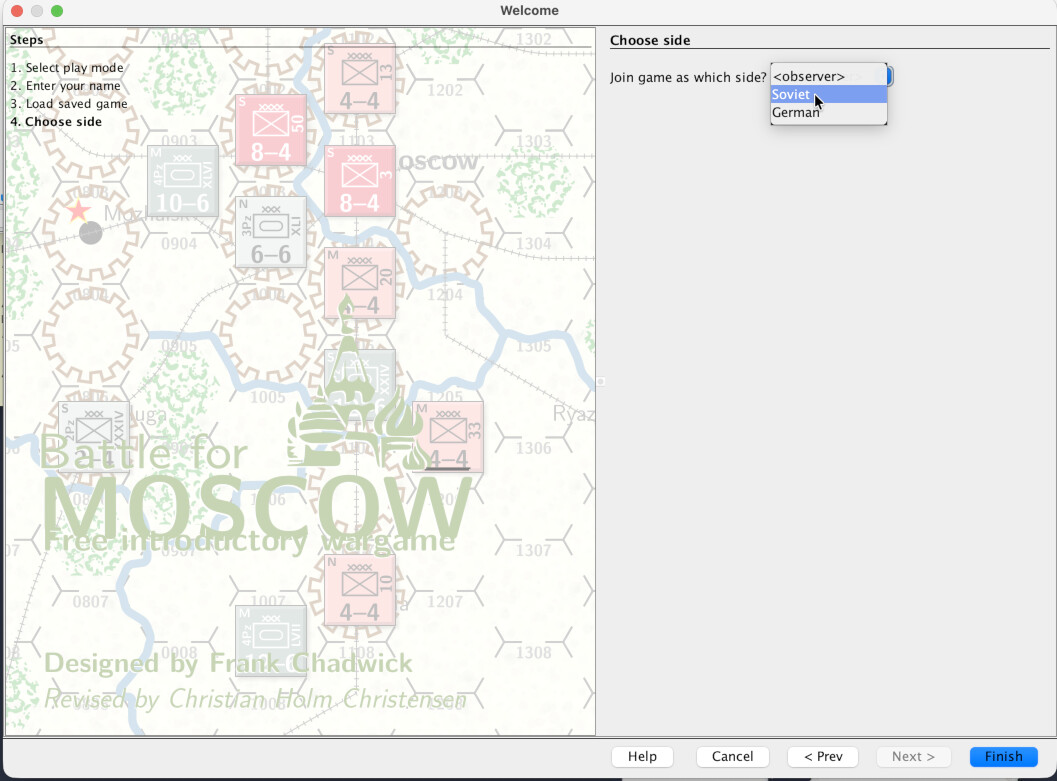
Now player B is asked to choose a side.
Player B cannot choose the German side, or faction, becaus that has already been chosen. We choose the Soviet faction, an then press Finish.
-
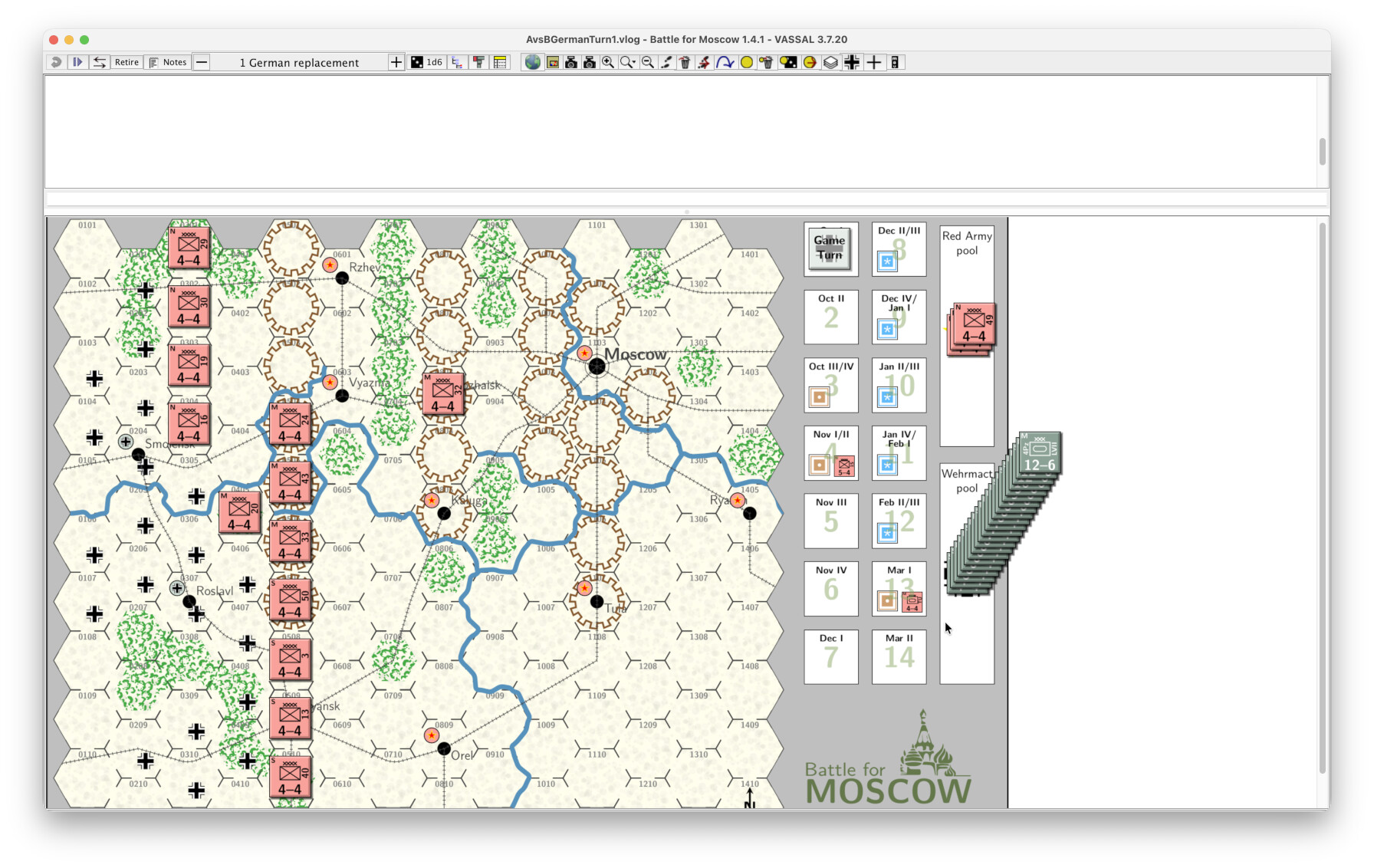
The game is now started in the state at the time when player A started the log recording.
-
Player B may now step through player A’s moves by pressing the step forward button
 (or perhaps
 PageDown).Player B will see all the moves, commands, comments, etc. that player A has recorded.
If, at any point during the replay of player A’s turn, player B has some objection to a move, then player B should immediately end the replay by starting a new log file via File→Begin Logfile…, add a comment in the chat to address the issue, and possibly do any moves. Then player B ends the log file with File→End Logfile and sends that log file back to player A.
The two players may then adjudicate the situation, for example via email correspondence, some sort of messaging service, live chat or phone call, and so on.
Once the players have come to an agreement, then play can continue from the agreed upon log file.
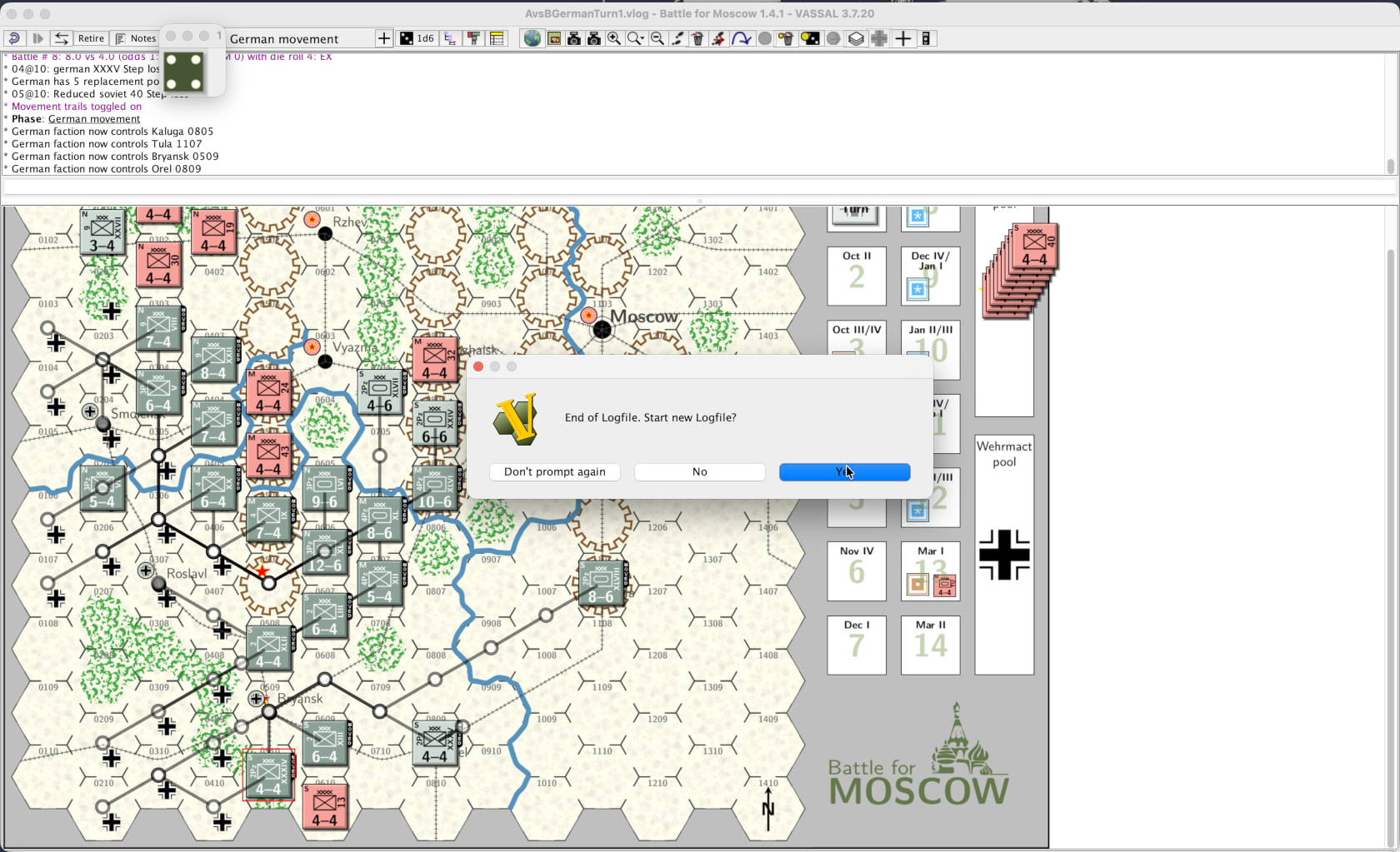
Once all steps have been replayed, a pop-up dialog will appear, tell us that the log has been completed, and then asking if we should start a new log file.
Here, we choose Yes.
-
We specify the file we want to store the new log in - say
SovietTurn1.vlog. As before, it can make sense to place it in a sub-directory - sayAvsB- next to the module file. -
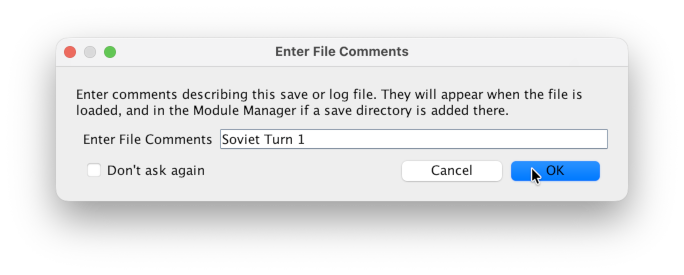
After that, we will again be prompted for a log comment. We can, as before, leave it empty. However, here we will enter
Soviet Turn 1.And then press OK.
We are new recording player B’s moves in the file
SovietTurn1.vlog. -
Player B now execute the Soviet turn, by moving pieces, rolling dice, draw or play cards, add comments, and so on.
As before, if the module has a turn tracker, make sure to use it to keep track of the turn.
As before, if player A needs to perform some action at any point during player B’s turn, then player B should end the recording, send the log file to player A for that player to perform the actions, and then only resume the turn once the new log from player A has been replayed.
-
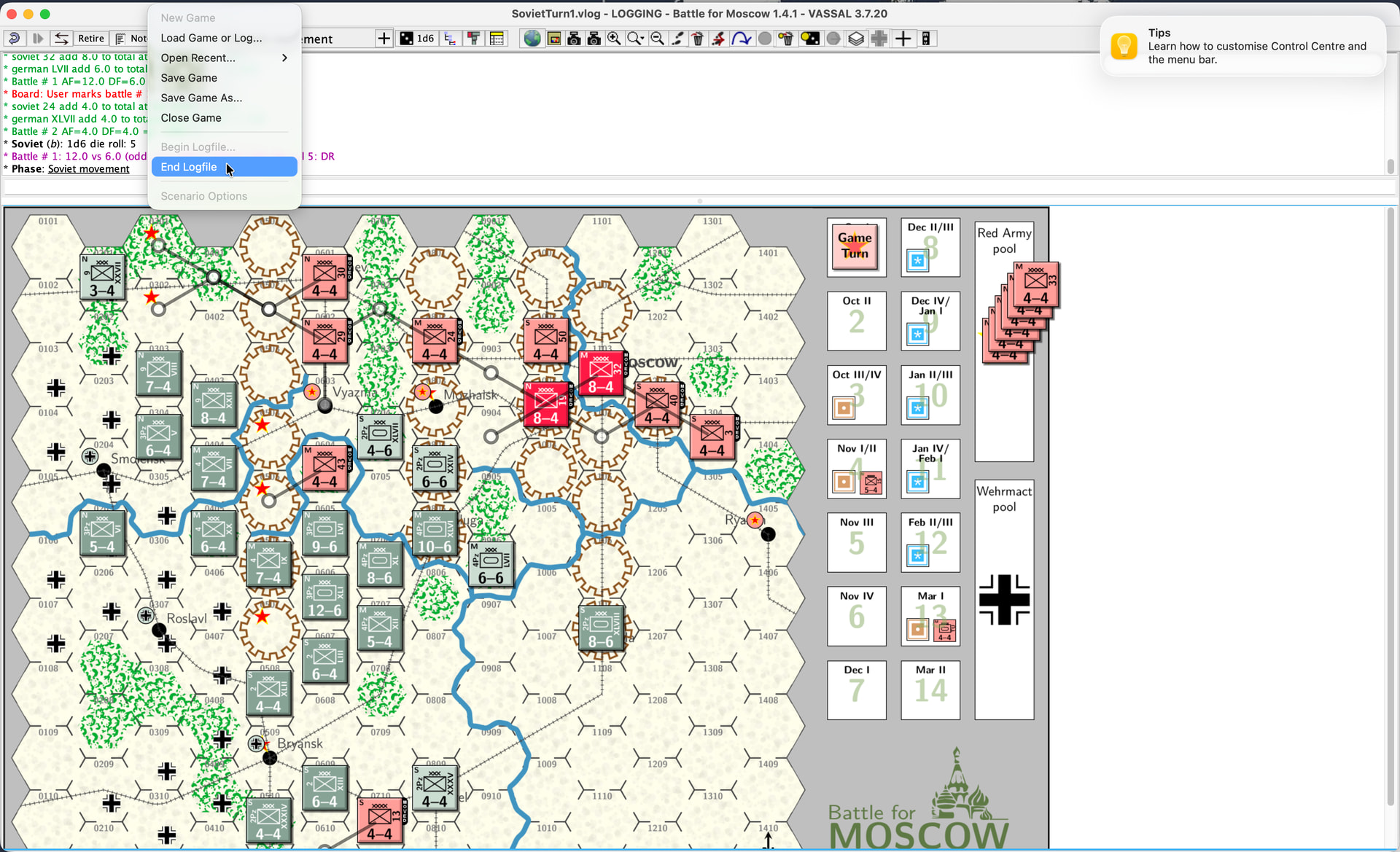
Once the Soviet faction has completed its turn, it will end the log file by File→End Logfile.
The Soviet first turn is now saved in the log file
SovietTurn1.vlog. -
Player B may, as in step 9 above, choose to close the game, quit the module, or leave it as is.
-
Also as above, in step 10, player B must now share the written log file
B-End.vlogwith player B.
Only player A
-
When player A receives the log file from player B, that player must then load that file.
- If player A closed the game, or left it running, then the new log file can be loaded via `File→Load Game or Log….
- If player A ended the module, then player A should repeat step 12 and 14 (13 will be skipped) above.
In all cases, player A will be asked to choose a side as in step 15 above.
-
Player A now performs steps 17 through 23, although with the roles unversed (A ⇄ B), and in step 18 we choose a more suitable file name for the log - e.g.,
GermanTurn2.vlog.We now have a new log file - say
GermanTurn2.vlogthat we have shared with player B.
Only player B
- Player B repeats steps 24 to 25 with roles reversed (A ⇄ B) and suitable log file names.
From there on out, players A and B takes turns performing step 24 and 25 - i.e., replay the previous players turn, and then start to record a new log.
A few words on log files
At any point while replaying a log file, a player may start to record a new log file by File→Begin Logfile…. All the replayed steps will be put into that log file, as well as any actions performed by the player while replaying the first log file.
For example, when player A above replays player B’s log file SovietTurn1.vlog, player A may decide to record a new log - say SovietTurn1-amended.vlog. While replaying SovietTurn1.vlog may decide that a particular move was wrong, or that player A should perform some action, and therefore interjects a move or similar into the log SovietTurn1-amended.vlog.
This way of amending a log can be a way to settle disputes between players, but can also in some circumstances be a way for an out-of-turn player to react to some action - for example, a retreat or the like. What is appropriate depends on the game mechanics.
Another possible use of recording a new log that contains the old log, is to record all moves in a single log file, That is, when player B above receives player A’s initial log GermanTurn1.vlog, then player B immediately starts a new log - say Turn1.vlog - and records all the actions from GermanTurn1.vlog in that. When that log is replayed, then player B performs its turn still recording in Turn1.vlog. At the end of the turn, player B ends the log file and ships it off to player A who then does the same thing.
There is another way of doing the same thing but faster. That is to use Tools→Load Log, Fast Forward & Append…. That will not replay the moves, but show the end state of the loaded log file, and then append new actions to the log file.
While replaying a log file, one can always stop the game, and then reload the log file and replay it from the start. For example, if one accidentally messed up the state of the game, or similar.
Finally, log files can become quite big, so some thought should be put into the best way to use and share them.