Play as Hotseat or Solitaire
Two players, A and B, want to play the module Battle for Moscow as hotseat.
Hotseat means that the game is executed on a single computer, and the players take turns to do their moves, etc..
Solitaire
In solitaire mode, the sole player will take on both the role as player A and B. As such, the player will exhibit a certain level of split-personality. In the following, when we say player A or B, it will be the same person performing the tasks, though acting out separate roles.
Note: Vassal does not provide any kind of computer opponent. If you want to play a game by yourself, then there’s no two ways about it: you have to exhibit a bit Dissociative Identity Disorder traits.
Starting up
-
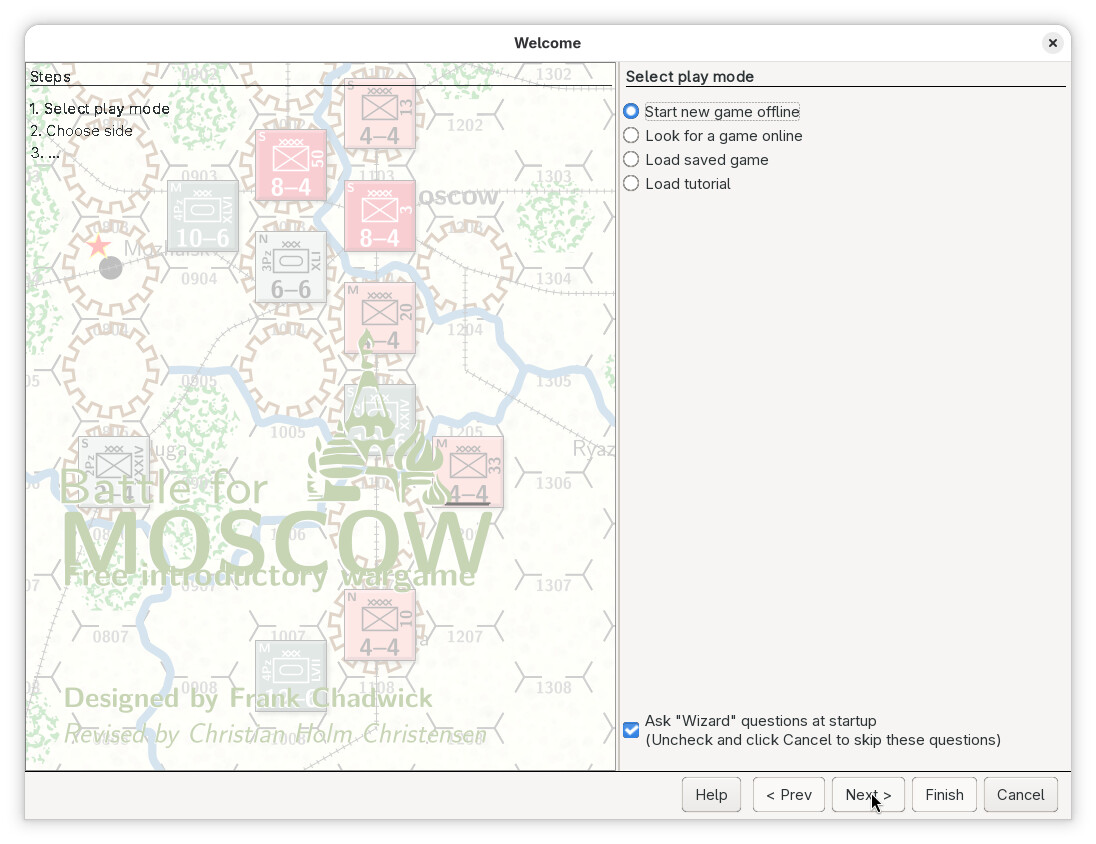
Player A opens the module from the Vassal module manager, and is created by the welcome wizard.
Here, we choose Start new game offline, and then press Next
-
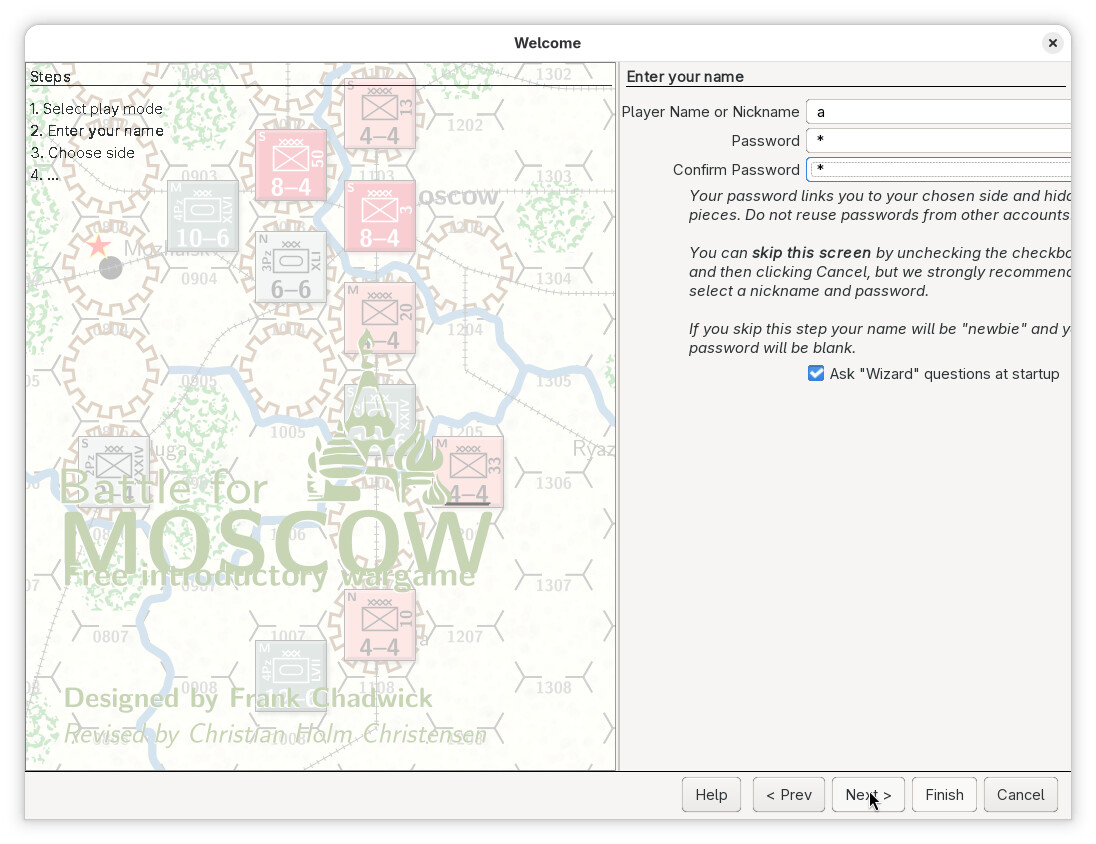
Next, we will be greeted by a screen to give information about the player.
Since we will be playing the game in hotseat mode, we will not associate anything to the player, and what we enter here has no real consequence.
There a three text inputs.
- Player Name or Nickname: The name or nickname that will be used for both players. This name will be shown in the log messages. We choose the name
a. - Passowrd: The password to protect the logs and moves by both players. Here, we will choose the password
a - Confirm Password: The same as above - we choose
a, as it must match the above.
After entering the information, press Next
- Player Name or Nickname: The name or nickname that will be used for both players. This name will be shown in the log messages. We choose the name
-
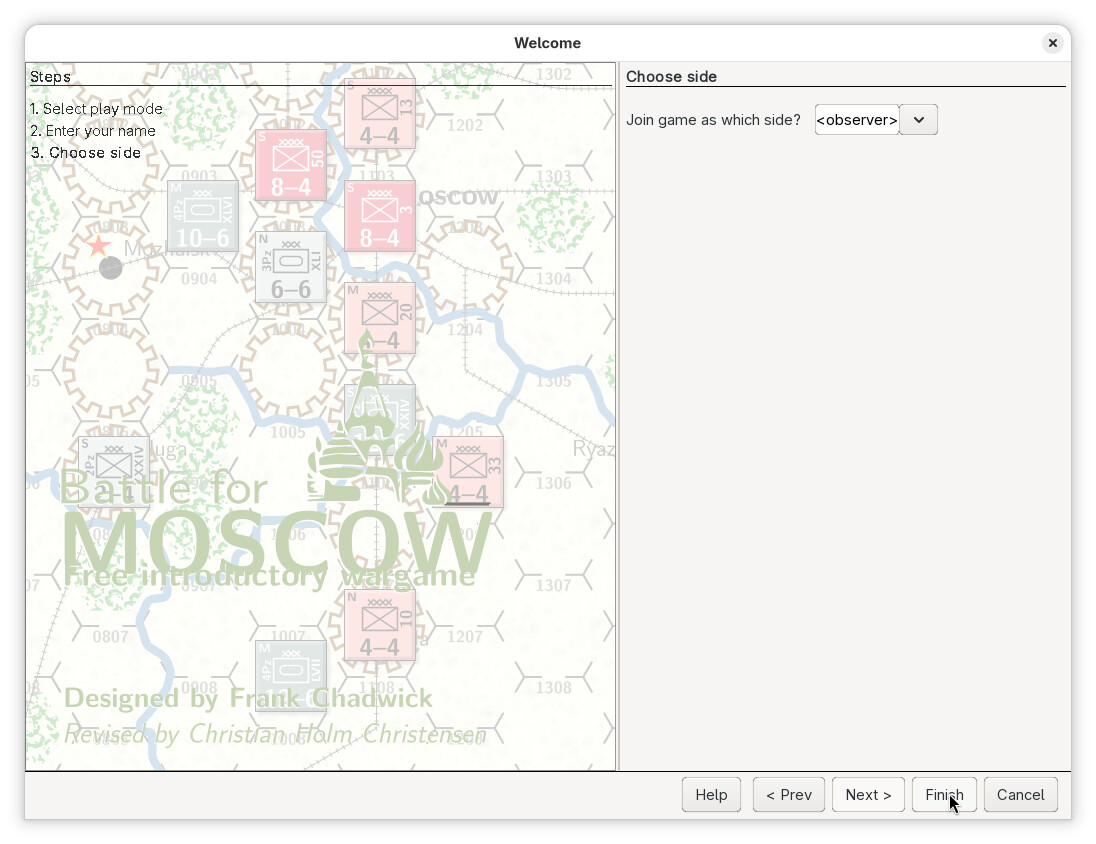
Next, we will be prompted to choose a side.
As we are setting up for a hotseat game, we will choose
<observer>here, and only switch to a particular side when appropriate.For Solitaire play: Some modules may define a Solitaire side. If that is the case, then the player may choose that side here, and ignore switching sides as described below. However, it is often not strictly necessary, and there can be a point to switching sides even when playing solitaire.
You should consult the modules documentation (typically in the Help menu).
Then press Finish.
-
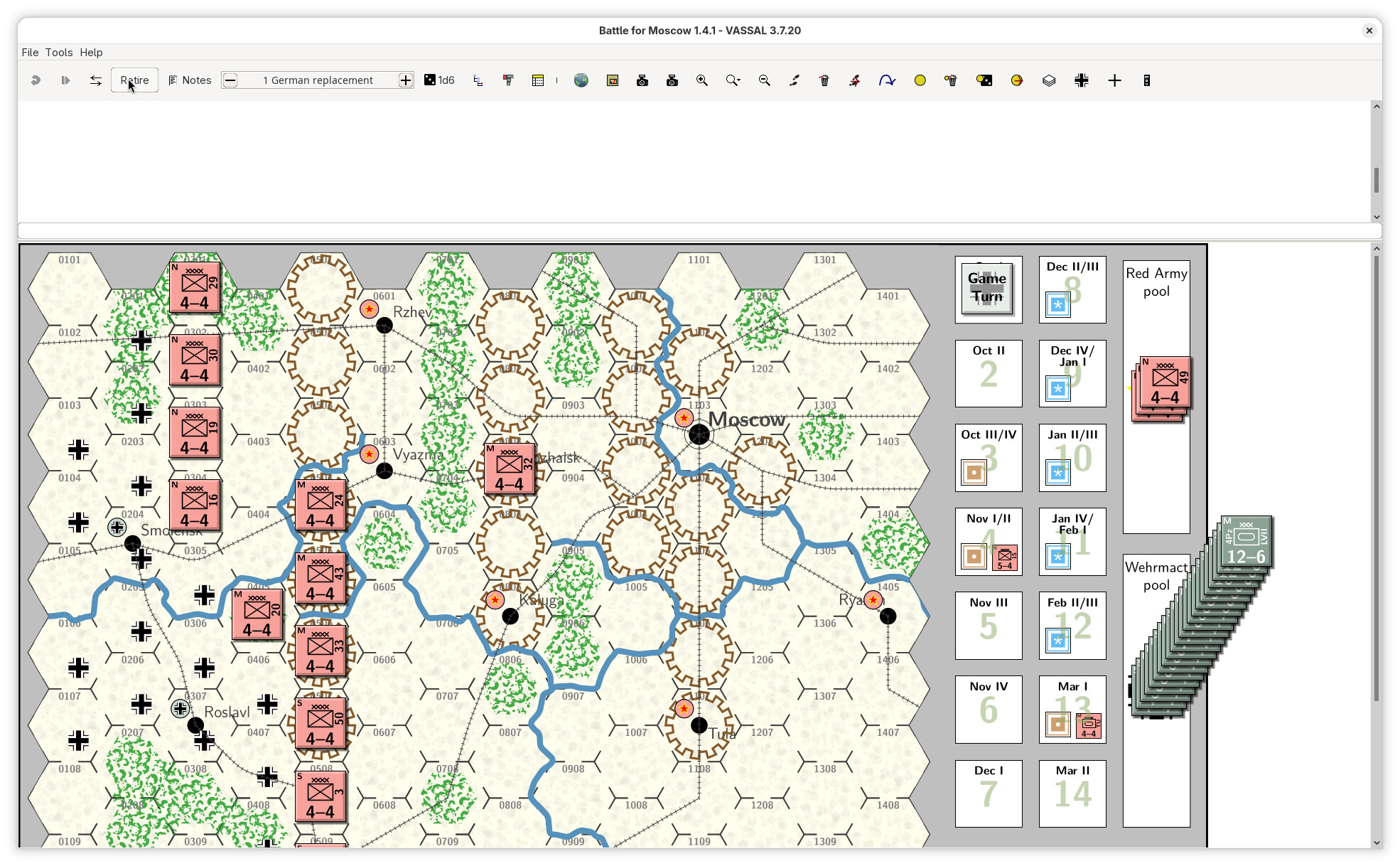
The module will finish loading up, and we will have the full module interface.
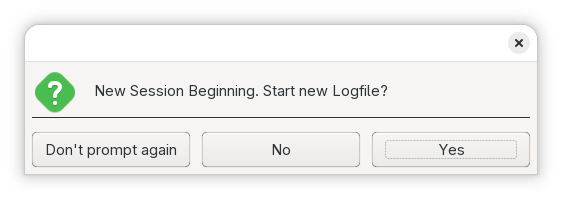
You may be prompted to write a log file. If you wish to do so, so that you may replay the game later on, press Yes and follow the instructions. Otherwise, press No or Don’t prompt again if you do not want to be asked this question in the future.
Player A’s turn
-
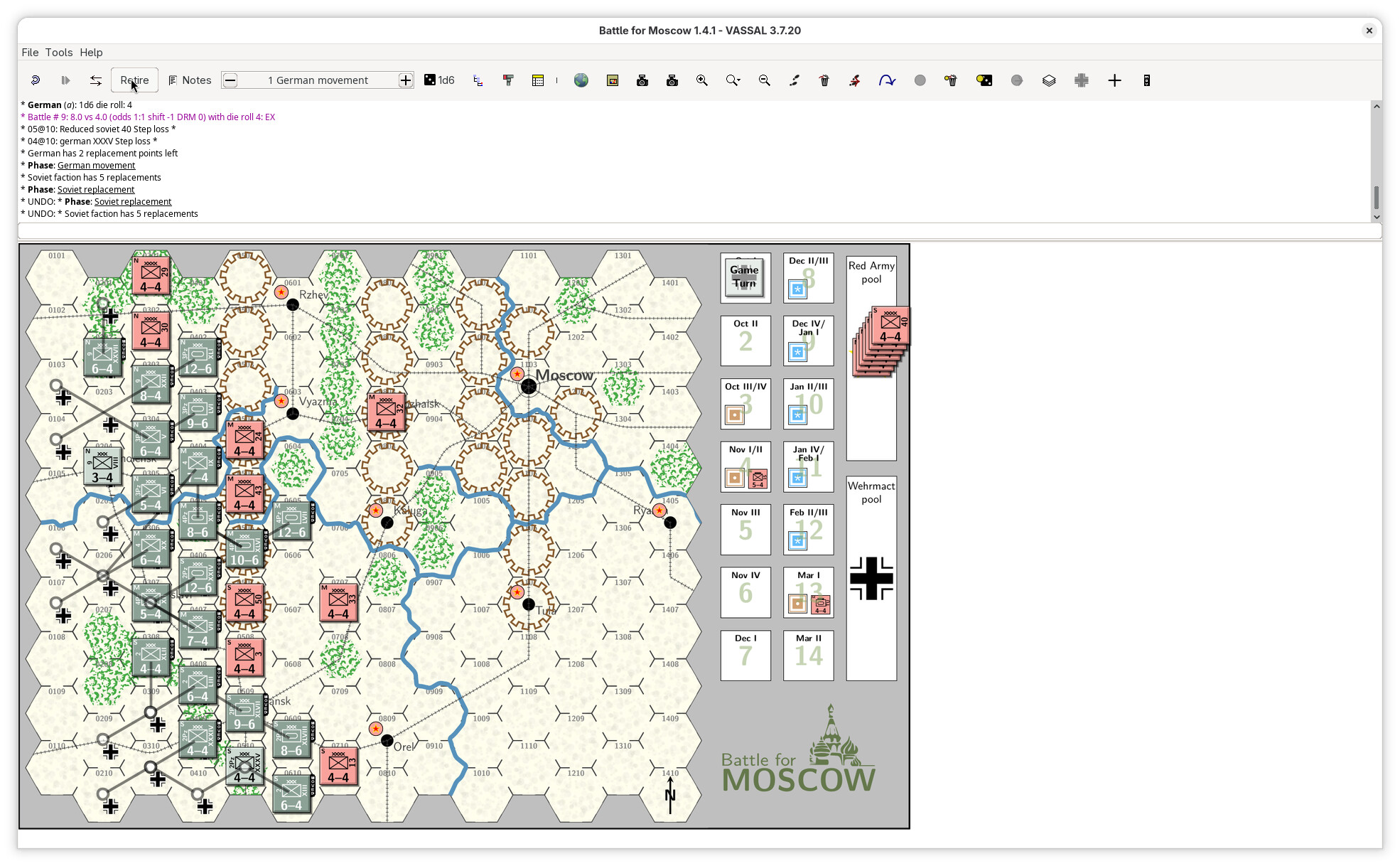
Player A should then sit down in front of the computer, and press the Retire button.
-
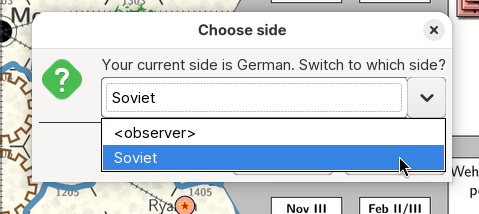
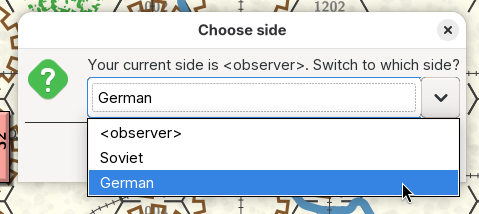
A pop-up dialog will appear to let the current player choose the side to play.
Here, we select German and press OK.
The current player is now associated with the German faction.
Some modules may limit actions depending on the currently active faction (or side), and it is therefore important to track who ever is supposed to do what using the Retire button and associated dialog.
-
Now the German faction should perform its turn, consisting of moves, actions, draw or flip cards, and so on.
If, at some point during the faction’s turn, the other faction needs to react or intervene, then Player B should take over the machine, and immediately switch to its faction (Soviet in this case).
It could be, for example, that player B needs to retreat some units, play a card in response, reveal a unit, and so on.
Once player B has completed its reaction, then that player should switch back to the original faction (German in this case), and immediately relinquish control of the computer to player A.
If the module provides a turn tracker in the tool-bar, as the Battle for Moscow module does, then that interface should be used to track progress through the turn. Some modules may limit what can be done at different phases of a turn, for example.
-
Once the player A has finished the German turn, it is time for player B to take over.
Player B’s turn
-
Player B takes over control of the computer, and immediately presses the Retire button.
-
A pop-up dialog will appear to let the current player choose the side to play.
Here, we select Soviet and press OK.
The current player is now associated with the Soviet faction.
-
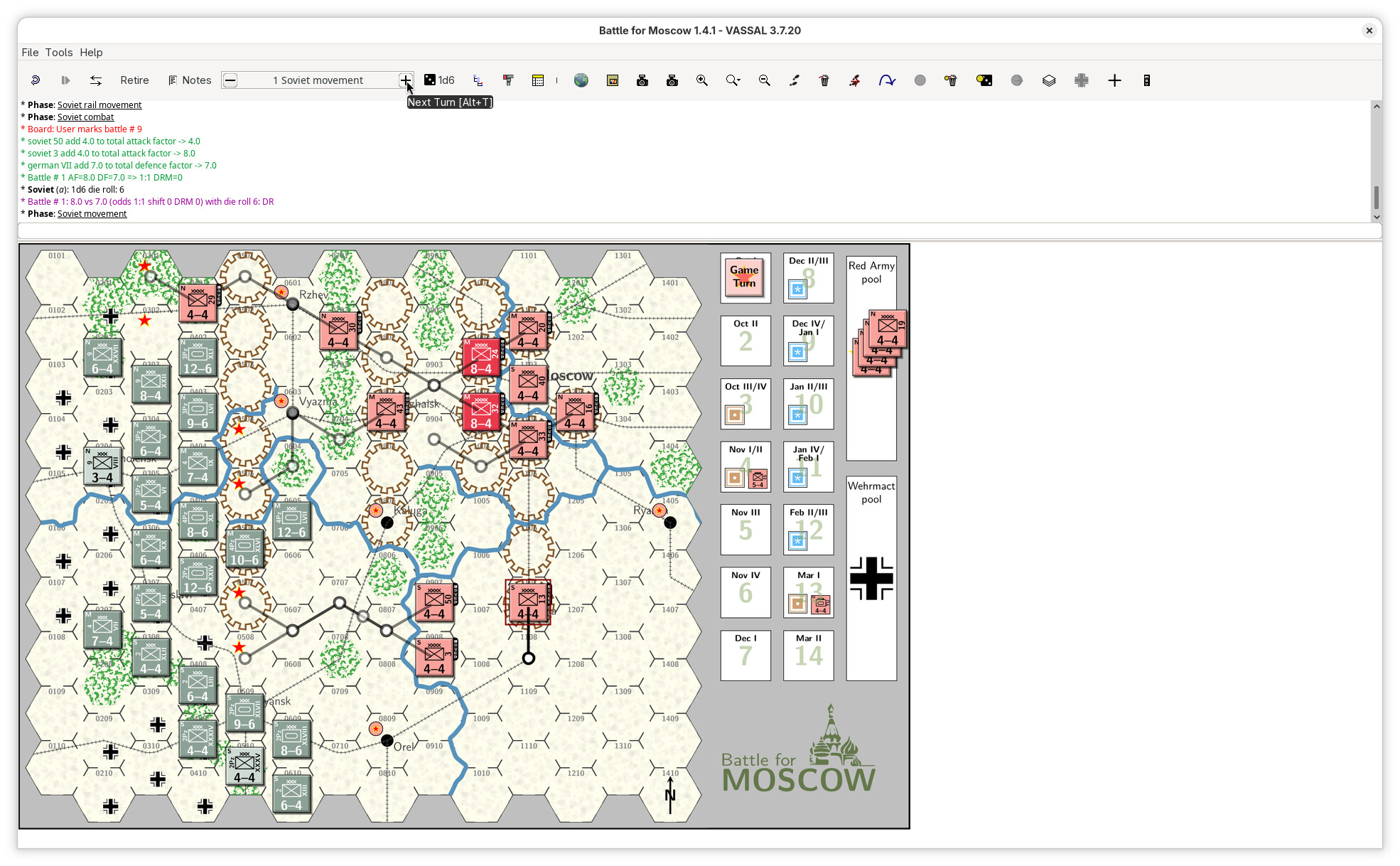
Now the Soviet faction should perform its turn, consisting of moves, actions, draw or flip cards, and so on.
If the module provides a turn tracker in the tool-bar, as the Battle for Moscow module does, then that interface should be used to track progress through the turn. Some modules may limit what can be done at different phases of a turn, for example.
-
Once the player B has finished the Soviet turn, it is time for player A to take over.
-
Repeat steps 5 through 12 until the end of the game.
Remember
-
to be mindfull that players switches sides as appropriate. If the module has “secret” information, it is especially important.
The players should agree to why does the actual switching of sides, and agree to not take the chance to peek at the other players secret information.
-
use the turn tracker if provided by the module.
The players should agree on who switched to the next factions turn, and agree not to take the opportunity to peek at the other players possible “secret” information.
-
if the player not in turn needs to react, then that player should take over the computer and immediately switch to the its faction, perform the operation, and then relinquish control to the first player.
Again, the players should agree not to take the opportunity to glance at the other players “secret” information.
-