Peer-to-peer game setup
These are instructions for running a peer-to-peer game. If you want to run a game using either the central Vassal server or a private server, see these instructions.
Setup
We suppose we have two machines A and B both connected to the same Local Area Network (LAN), and two users seek to play the module Battle for Moscow. Both players should get the exact same version of the module.
If one want to make absolutely sure, that all players are using the same module, the may exchange checksums of the modules. See here for more on calculating and checking checksums.
| Machine | A | B |
|---|---|---|
| LAN IP | 192.168.1.2 |
192.168.1.3 |
| User | a |
b |
| Password | a |
b |
To set up a peer-to-peer game, the following procedure should be followed.
If you want to run a game with more than two players, then duplicate the instructions for client B as needed.
On both clients
-
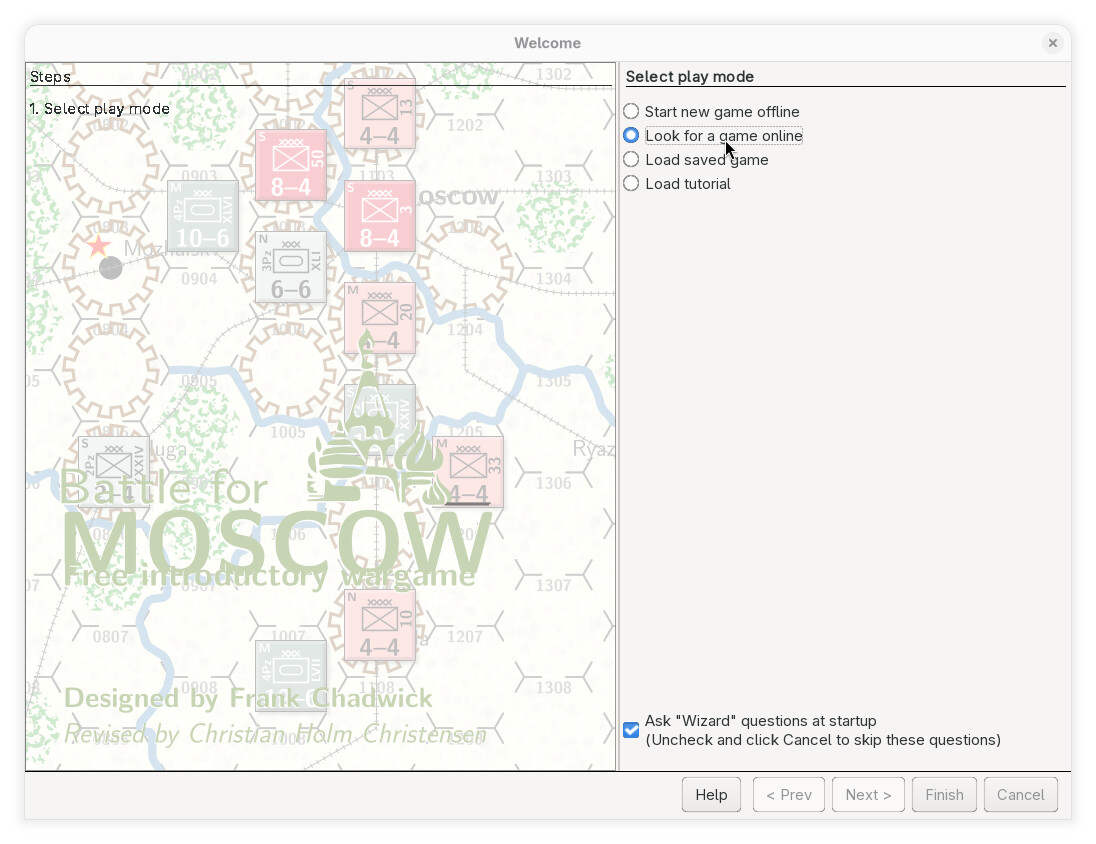
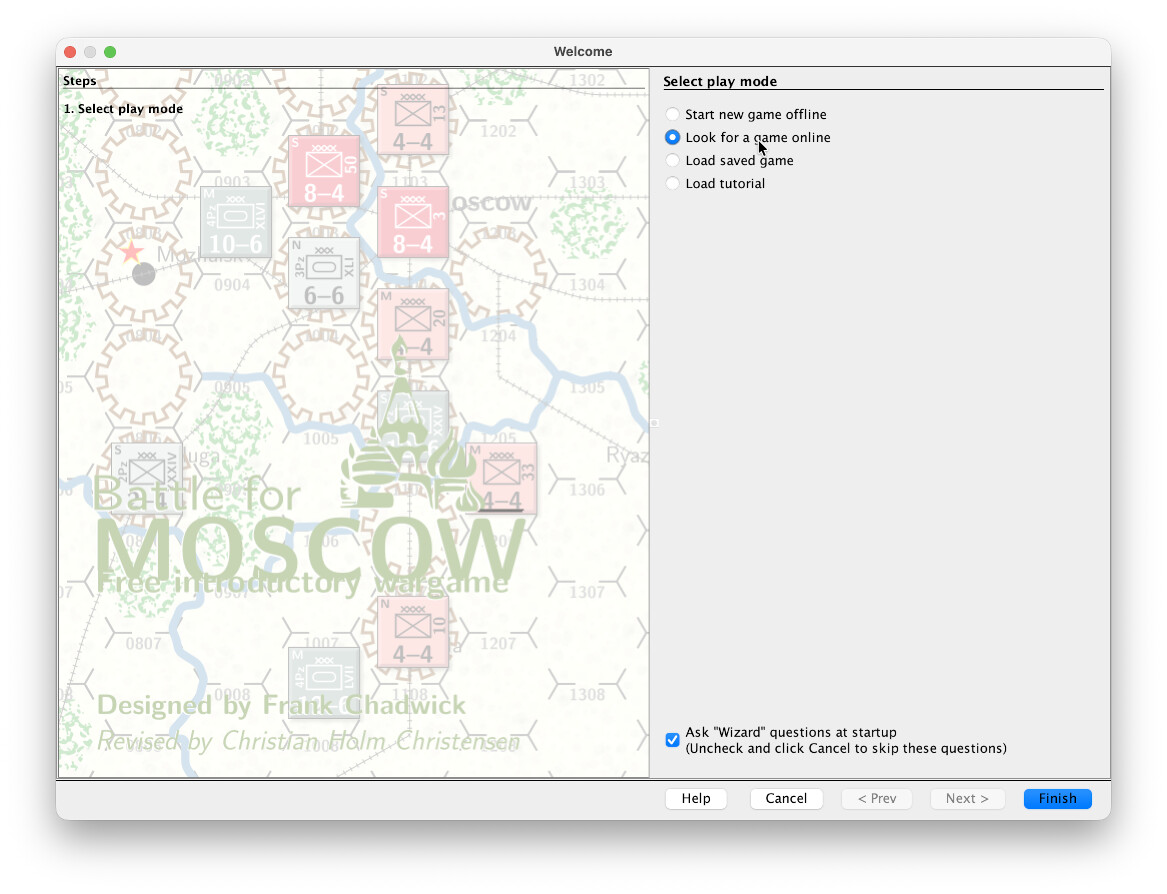
We start the Vassal and load the selected module. When prompted to choose the play mode, we select Look for a game online
-
We then click Finish
-
Now the module has been started up, but we have not yet started a game. First, we need to set-up the connection between the two client.
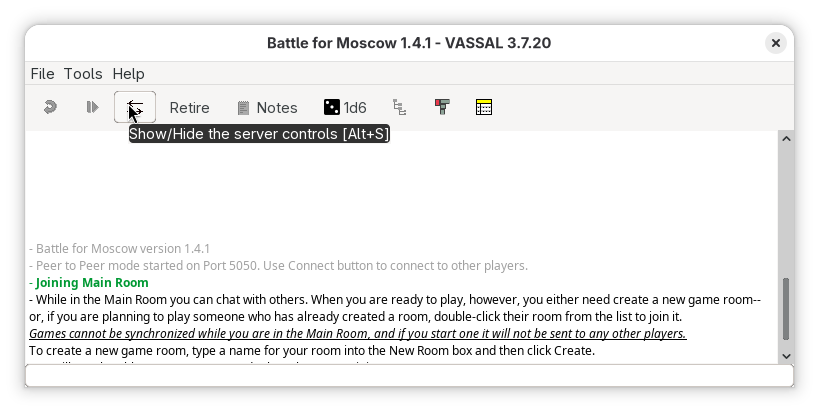
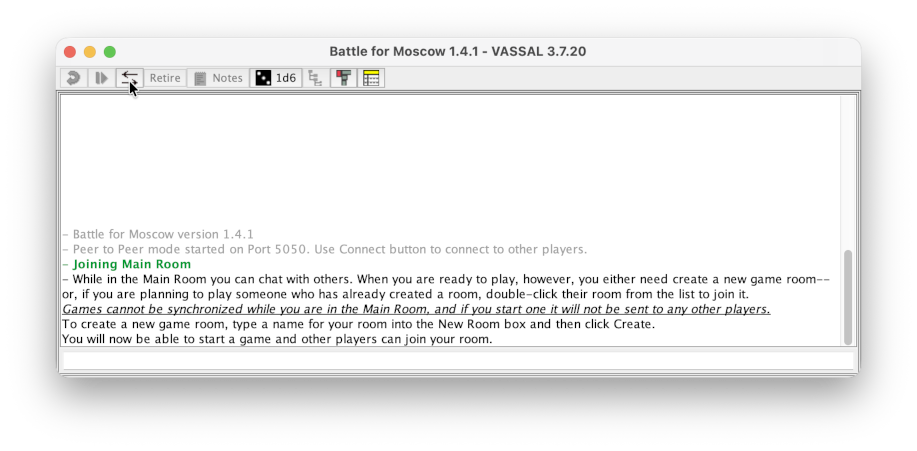
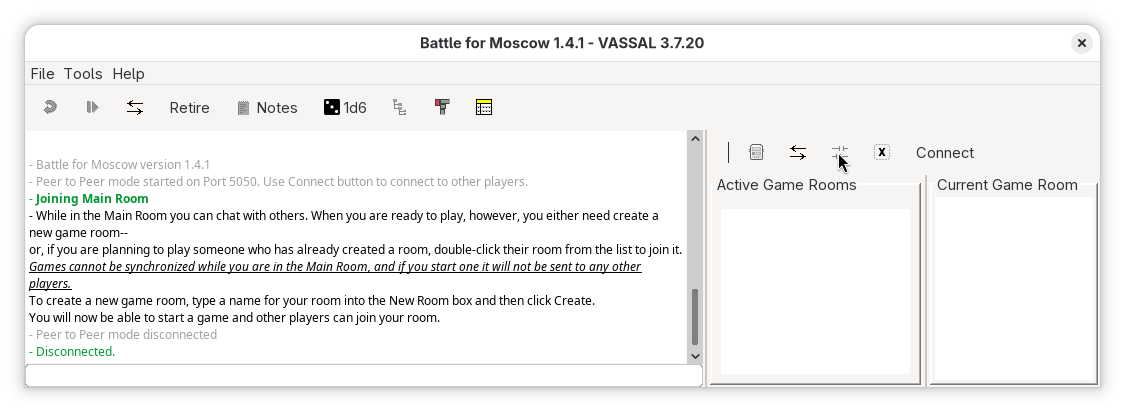
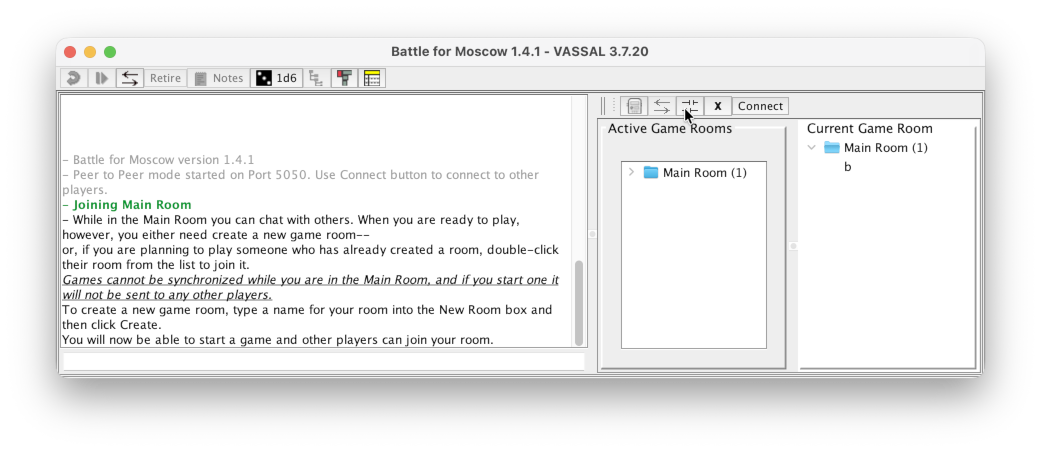
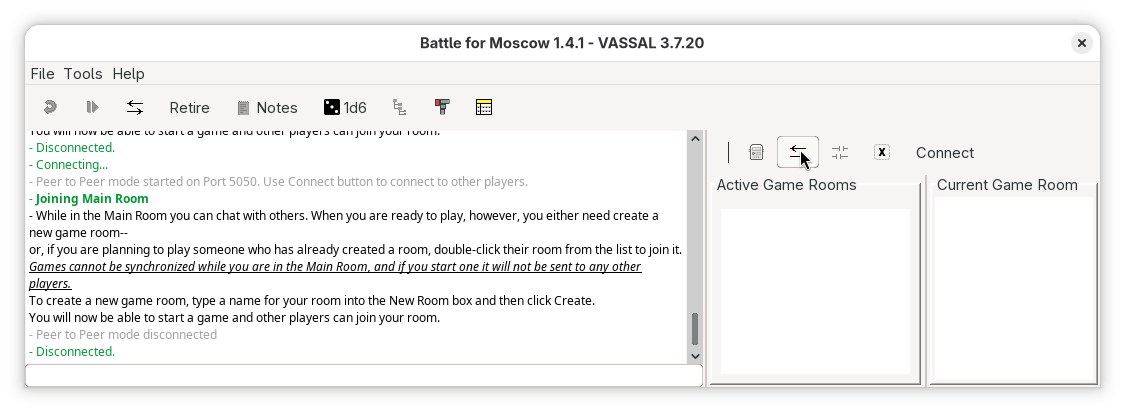
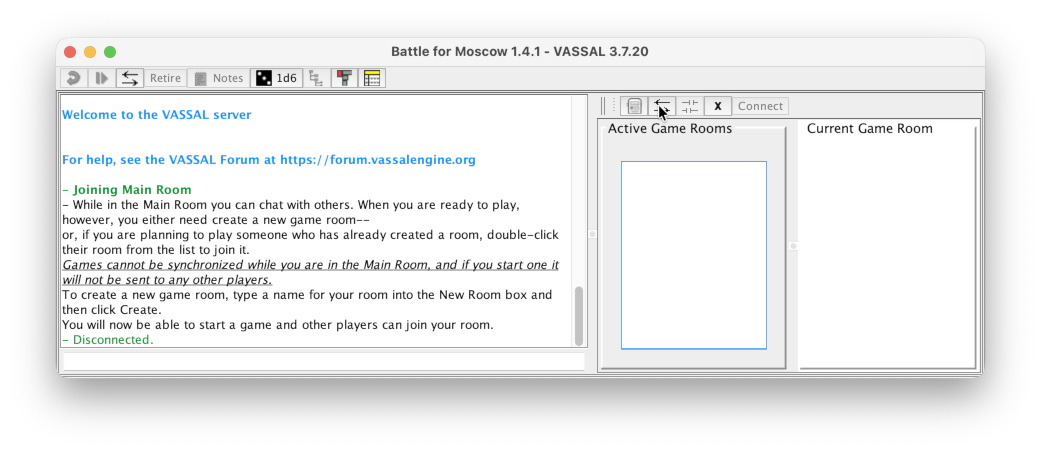
Press the Show/Hide server controls (Alt-S)
 button in the toolbar.
 -
If already connected to a server, press the Disconnect button

-
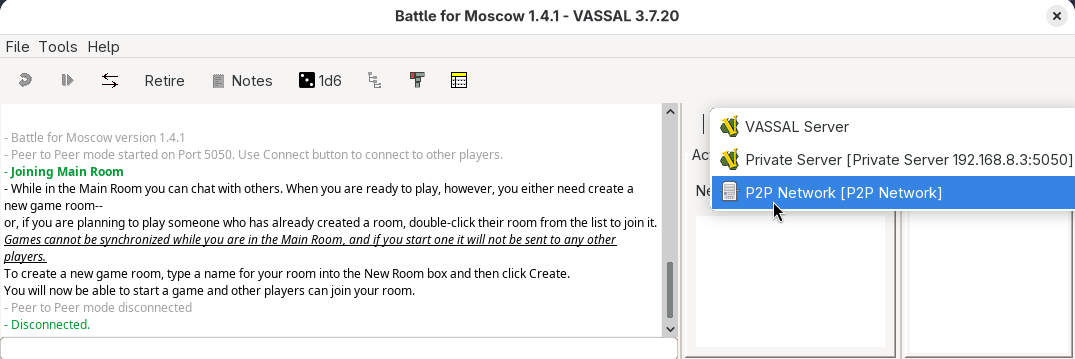
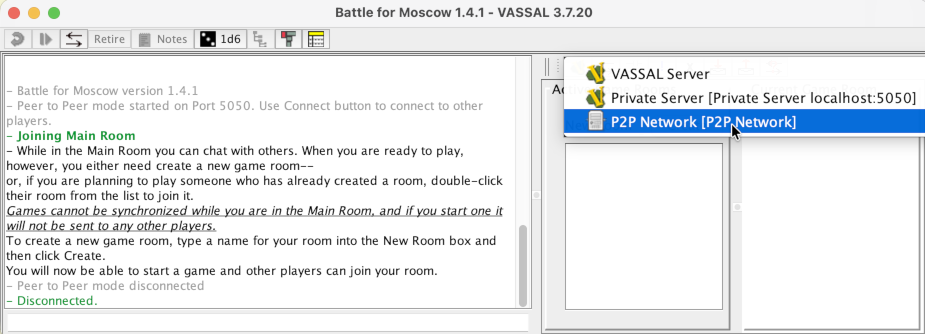
Now right click the server button and select P2P Network
-
Now click the Connect button
- not the button with the word “Connect” on it, but the one with two arrows.
Only on client A
-
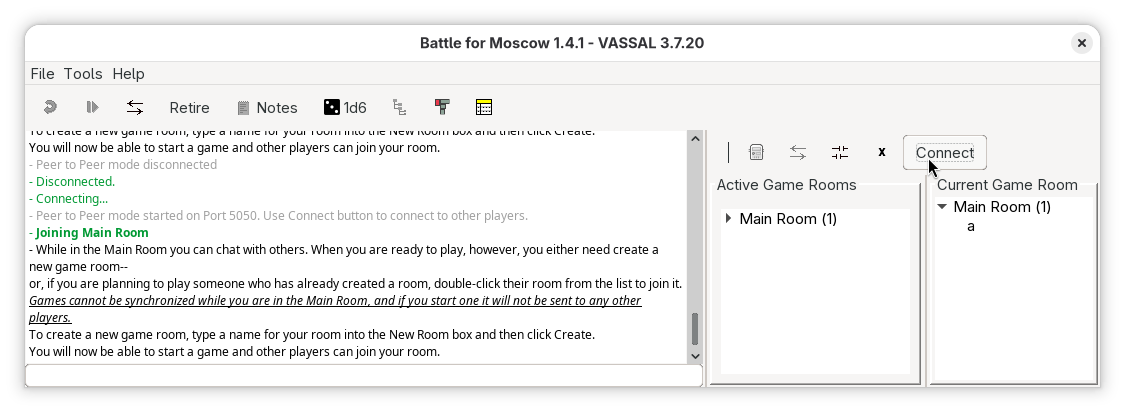
Press the button with the word “Connect” on it.
-
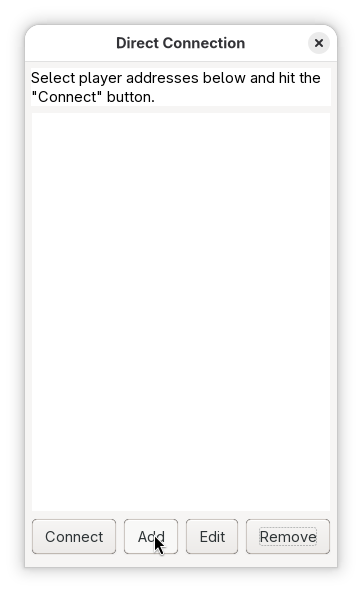
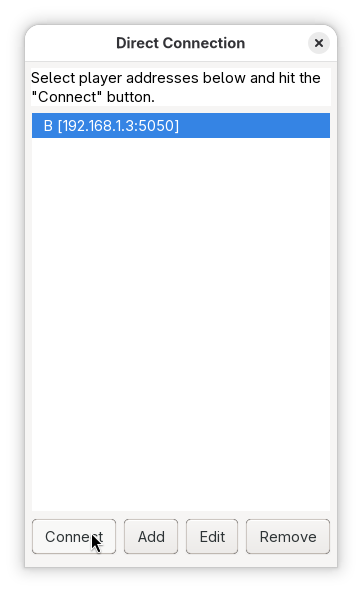
This will pop=up the Direct Connection dialog. Press the Add button at the bottom.
-
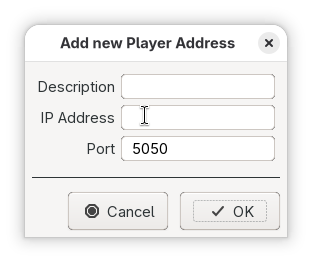
This will pop-up yet another dialog with three text fields in it.
The fields are
- Description: A free format string. Here we will choose
B - IP Address: The IP address (4-tuple of numbers) of the other client we want to connect to - in our hypothetical set-up this will be
192.168.1.3 - Port: The port number we want to use. We will leave that as
5050but we could choose a different number if we are running many pier-to-pier games.
Now press OK
- Description: A free format string. Here we will choose
-
Back in the Direct Connection dialog, select the newly added entry and then press the Connect button.
Close the dialog afterwards.
-
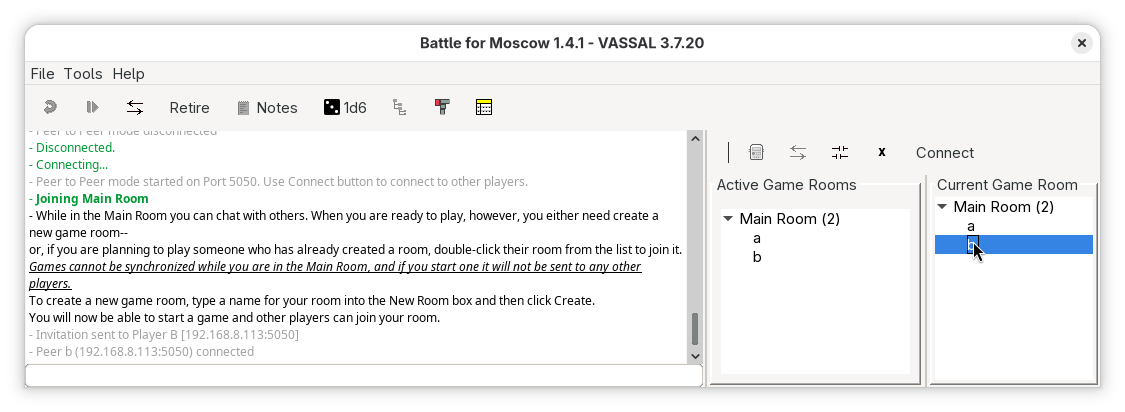
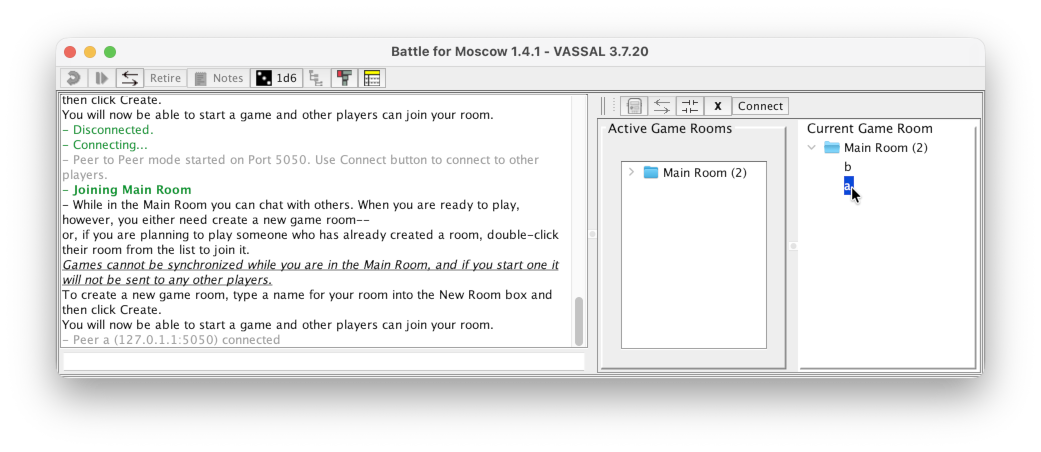
Both clients will now show the connection.
-
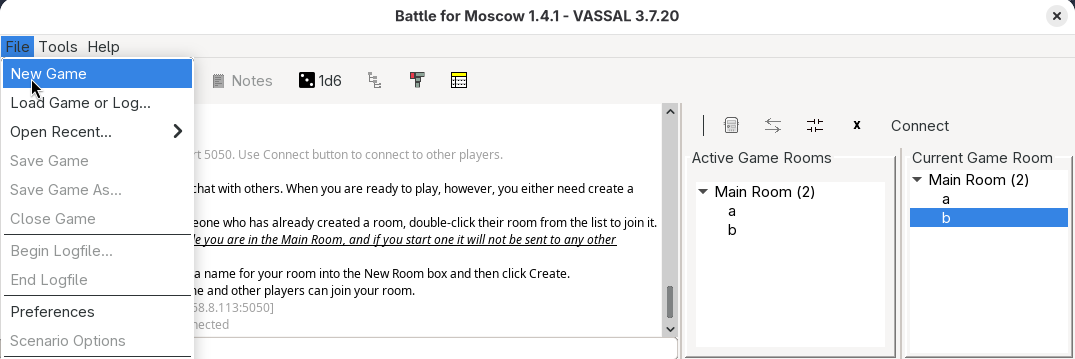
Still only in client A, we can now start the game via
File→New Game -
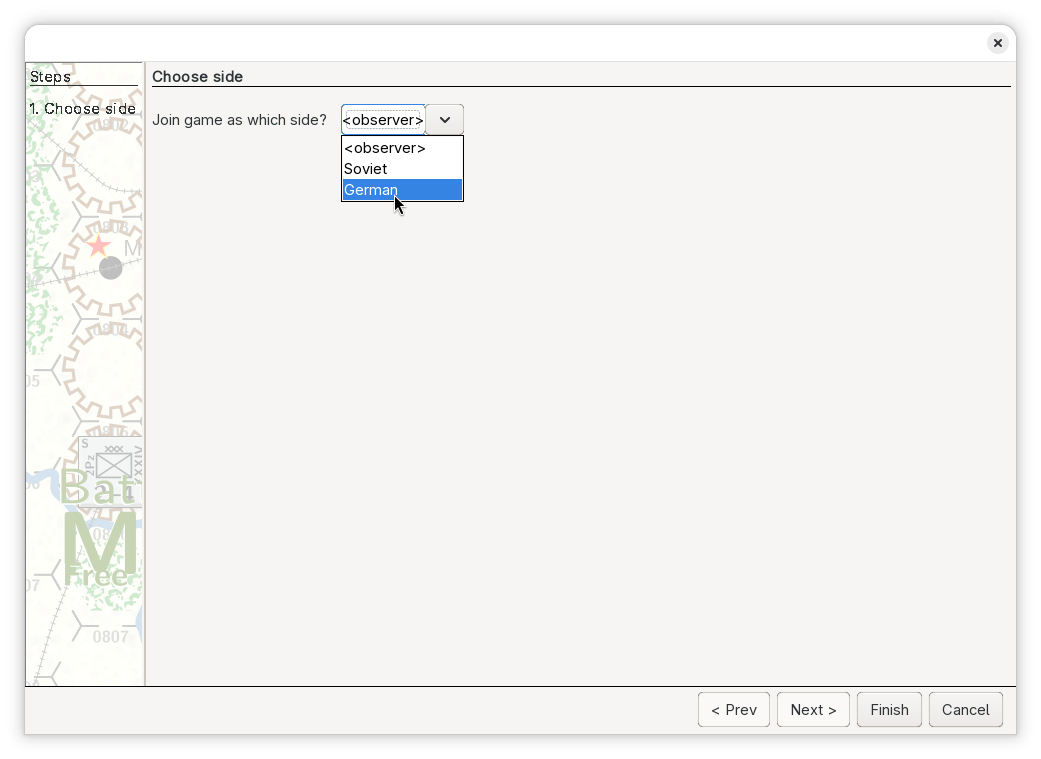
Client A will be prompted to select a side
Press Finish after selecting the side.
-
This will start up the game as per normal.
Only on client B
-
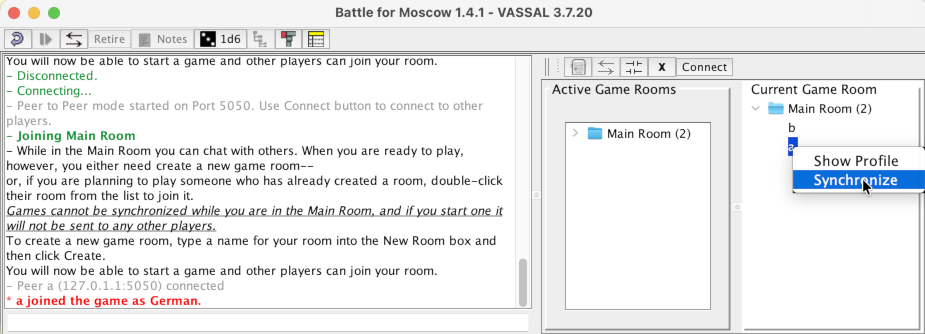
Select the
auser in the Current Game Room and right click i to show a context menu. From that context menu selec Syncronize -
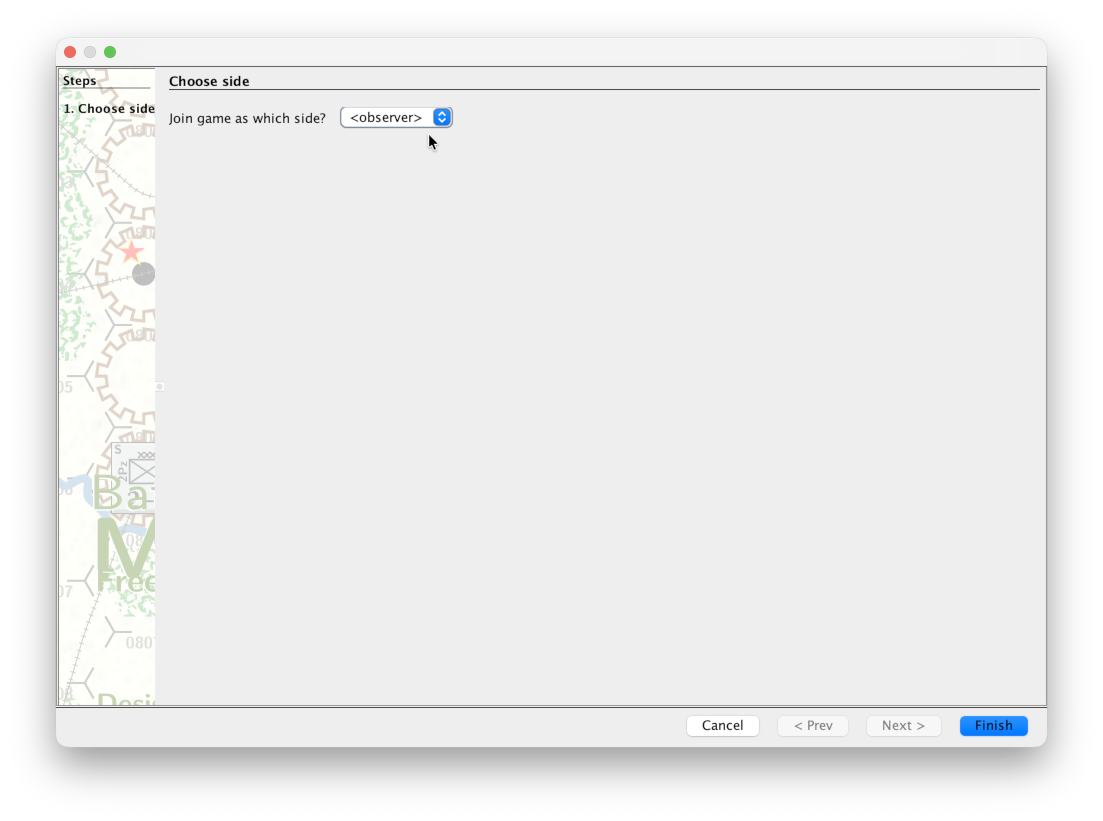
Client B will be prompted to select a side
Both clients are now connected
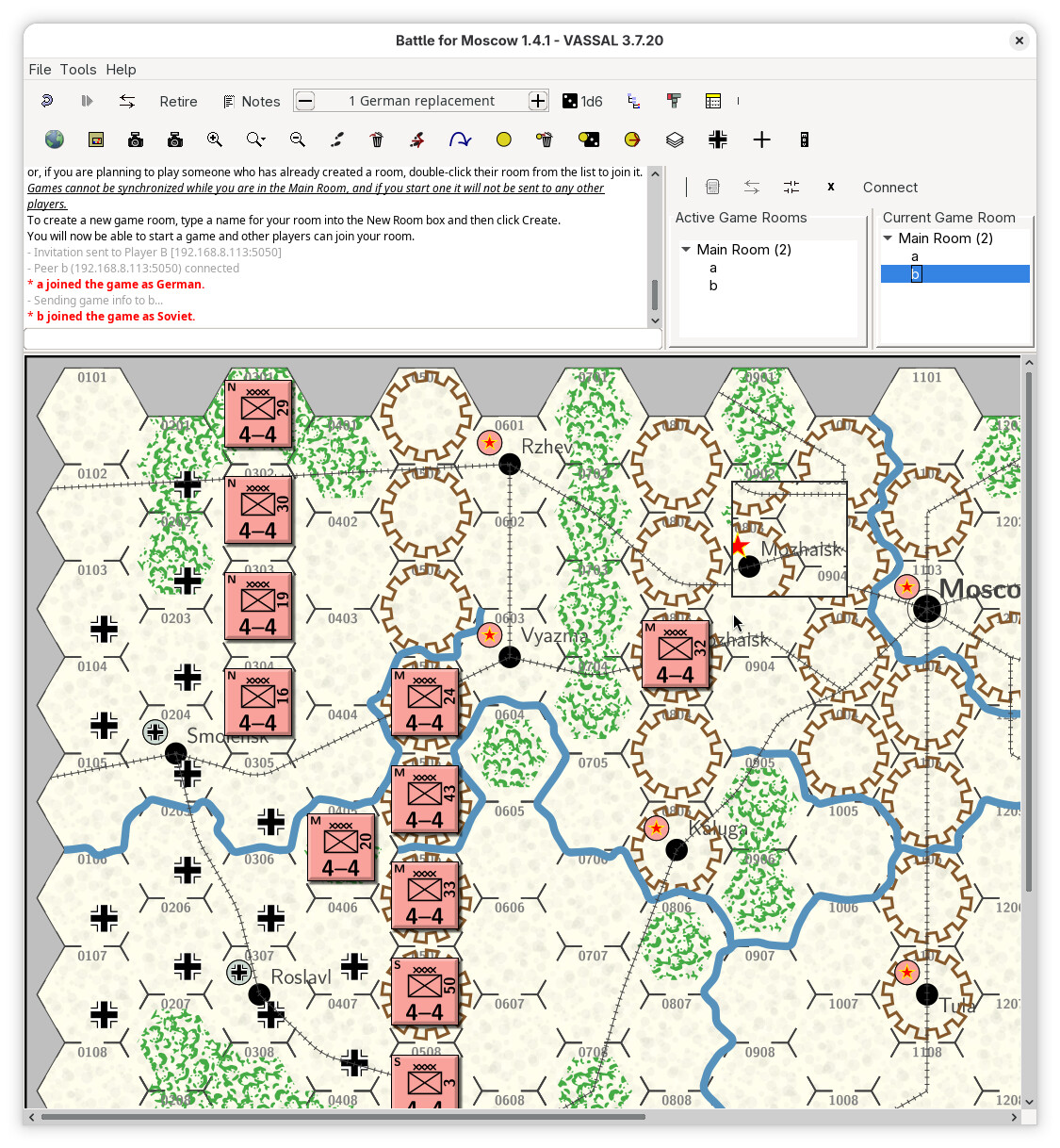
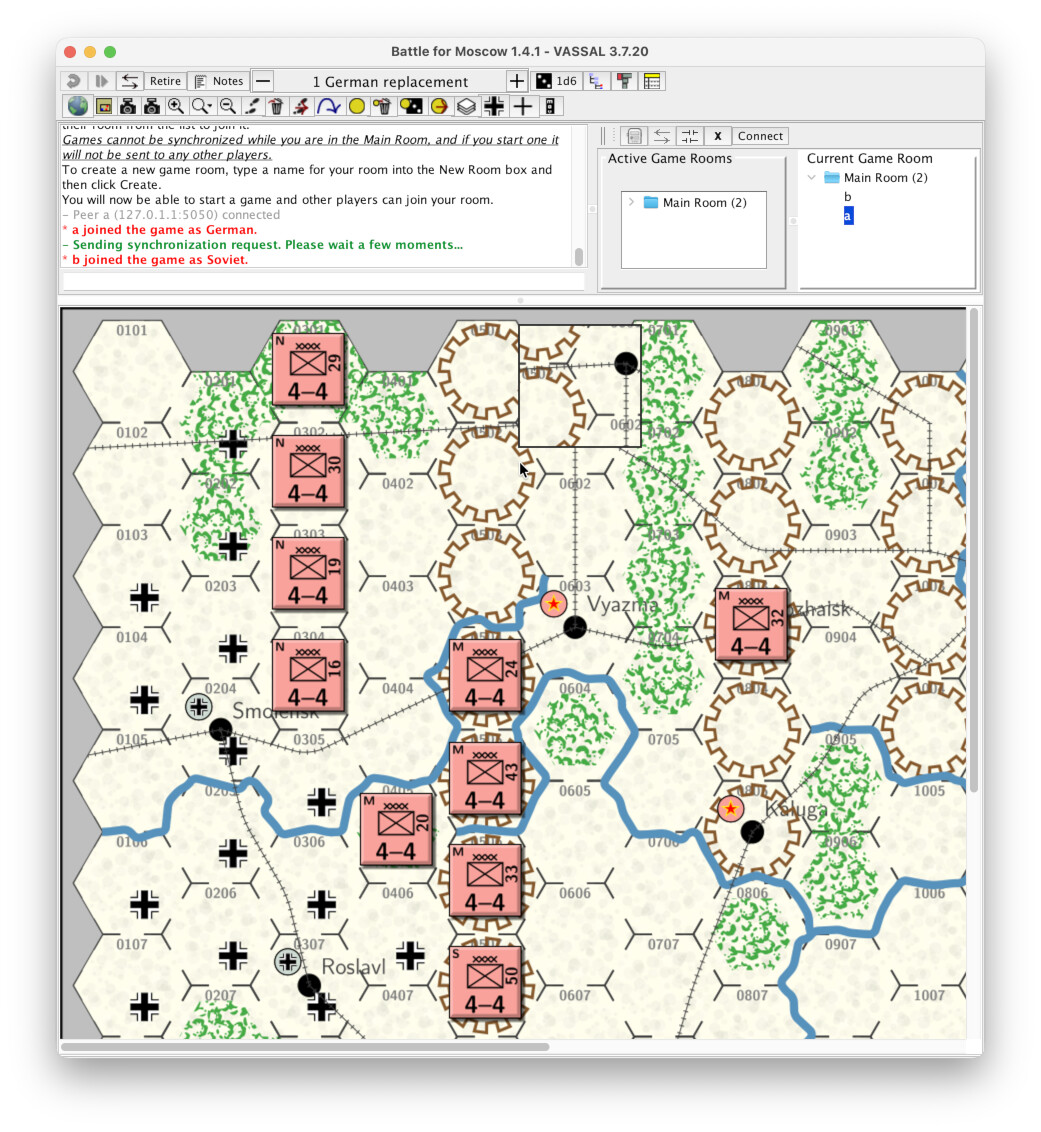
You and your follow player can now start to play the game.
Problems with syncronisation
If it seems like a client is out of sync with the other client - typically after a client machine suspends or you switch to another application for an extended period of time - you may need to syncronise the two clients again.
In the server controls interface, in the Current Game Room panel, right click the other player and then select Synchronize.