Switching between pieces without borders to colored borders

I have developed a module for the battle of Leipzig with pieces as topdown figures (see Leipzig 1813). The main objection I had about the module from other players was that the pieces couldn’t be easy diferentiated to which players they belong. I can solve this easily by placing colored borders at the prototype pieces (blue for the French and red for the Allies). But personally I prefer them without colored borders as it looks more like a battle.

Would it be possible to have a button that would switch the appearance of the pieces to be seen with or without the colored borders, as we wish? Something similar to the action “hide pieces from the border” that would place or remove the pieces’ colored borders.What do you think?

Thanks in advance.

One method is to add a layer to the figure pieces with the border image that can be turned on or off.

Create a Global Key Command that Enables/Disables the border layers. This could be implemented in a way that you can turn on all, some or specific borders.

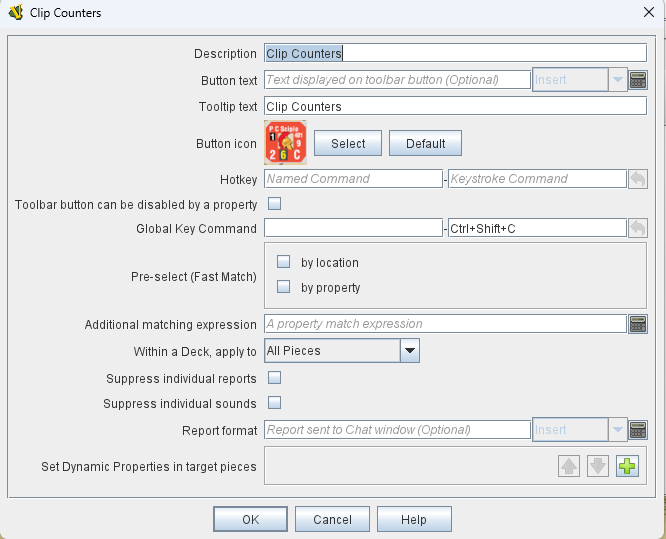
This is an example of a GKC that allows the players to see the counters as either clipped or unclipped on the corners. Similar concept.

Or your pieces can use the border trait. Turn it on or off via a property.

2 Likes

look at Air & Armor: Würzburg, Tactical Armored Warfare in Europe – Designer Signature Edition - Module Library - Vassal

the find Units feature for HQ’s Does what I believe you are asking. A HQ can turn on/off a square border around all units under its command

I do it via menu driven for German/Soviet units in Stalingrad: War of the Rats.

Thank you all for your suggestions.

The one that attracted me more was the one from Shilinski about adding a border trait (which I can easily do for I have different prototypes for French and Allies). How could I turn it off and on by a property? How can I do that? Could you please be so kind to explain me?

At the module level, add a global property, say borderOn. Set its default value to true. Next, in the French and allied prototypes, add the border trait. Open it, and where you see the request for a property, enter borderOn. Ignore the AND part. You can figure out the rest. One tip: put the border trait at the bottom of your prototype list. If you don’t, layer traits below it may cover the border, so you won’t see it.

I suppose you want to turn it off and on? In some piece that you won’t be deleted, add set-global-property for borderOn. Add a command to that trait, say “toggle.” Set it to {!borderOn}. This will toggle it false or true. When false, the border will disappear.

Want it to be a toolbar button? Inside the piece that you chose to toggle borderOn, set a marker trait like borderToggler=true. It must exist only in this piece. Now in probably your main window, add a map-level global key command. Have it send “toggle” with borderToggler==true. Clicking the button will send a command to that piece, and it will toggle borderOn.

Normally for this kind of work, I define a special piece in the main map whose job is just stuff like this. It has no image. It sits at (0,0), and all fields in does-not-stack are off. I call it a proxy piece. For you, any piece will do as long as it’s not ever deleted.

Want to toggle French and Allies separately? You will need to set up 2 global properties, one per side. You will probably want 2 toolbar buttons in this case, each sending a different command. That proxy piece can handle both.

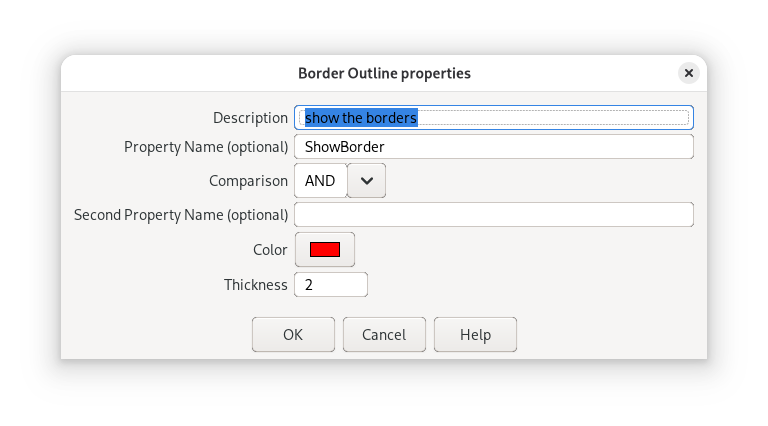
If you add a Border Outline to your pieces, you can control how when they are shown or not through Properties as @ shilinski points out. Remember to pay attention to the Trait Ordering: Traits that are closer to the top (in the editor - or the least decorated) are drawn first, so that your border shows where you would like it to go.

In the Border Outline you can specify up to 2 Properties conjoined by a logical operator:

Mode Property Property 2 Result
any true not given true
false not given false
AND true true true
true false false
false true false
false false false
OR true true true
true false true
false true true
false false false
XOR true true false
true false true
false true true
false false false
NOR true true false
true false false
false true false
false false true

The logical value (true or false) of a property depends on its value

Property value Logical value
empty false
0 false
false false
otherwise true

The property (properties) specified in your Border Outline can be a Global Property, Global Options, or local to the piece (e.g., Calculated Property, Dynamic Property).

Piece local properties are typically set by some trait - e.g., Dynamic Property, for example in reaction to some user input or through other traits.

Global properties (and optons) are defined at the module, map, or zone level. These can be manipulated through piece traits - Set Global Property, or from some Change-property toolbar button.

As an example:

  • Suppose you add Border Outline to your pieces (preferably through a prototype).
    • You specify the property ShowBorders as the condition
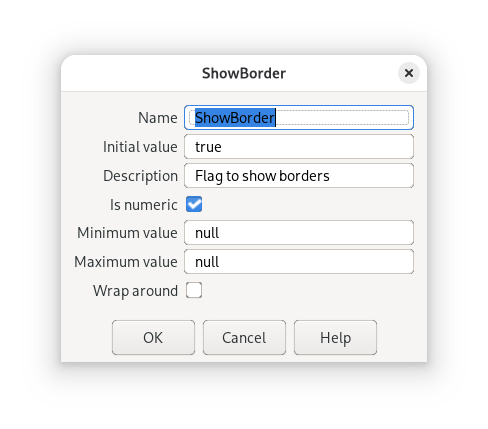
  • You add the Global Property ShowBorders
    • Is Numeric: true
    • Initial value: true
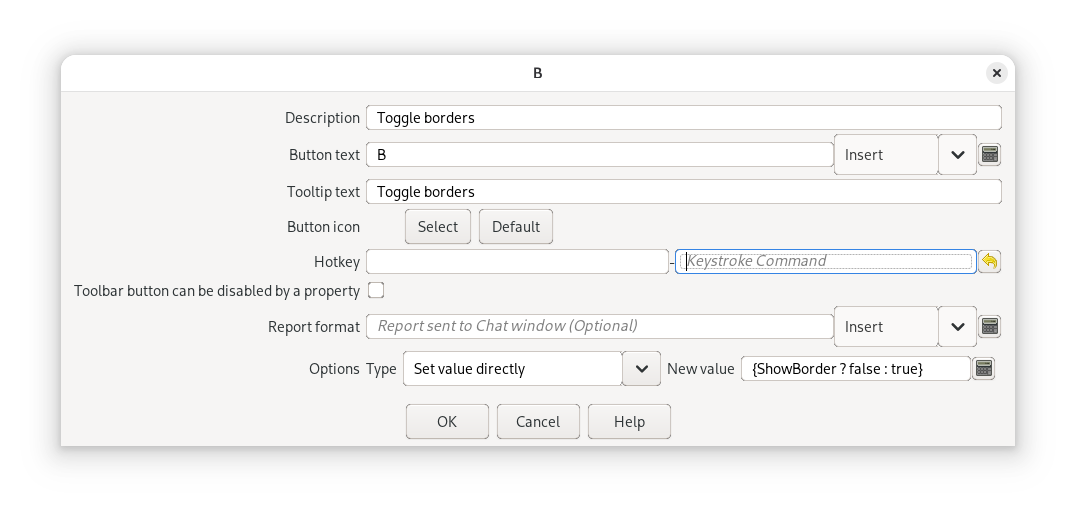
    • To which you add a Change-property toolbar button with
      • Button text: Toggle borders
      • Expression: {ShowBorder ? false : true}

Then, if the user hits the button, it will toggle the display of the borders by flipping the truth-value of the property.

You can of course add specific Border Outline traits to faction prototypes (f.ex. with properties ShowFrenchBorders, ShowEnglishBorders), and then have separate buttons for each faction.

If you’d rather have each piece toggle borders individually, you can still put the Border Outline in a prototype, but have it shown depending the truth-value of a piece-specific propeerty.

Yours,
Christian

1 Like

Thank you all for your advices. I am going to try it out until next week and then tell you how it went.

Yours indebted,

José Miguel

If it works out, please remember to mark the solution to your problem, so that other may more easily find a solution to similar problems. Only you as OP can mark a solution.

Yours,
Christian

I am sorry for the delay in reporting back.

Thank you very much for your patience and your tips. Only today I have managed to have some spare time to work in the module. I have followed both of your instructions. I have finally worked out with the ones from Christian, which are more precise.

I have followed them step by step - there was only one doubt: should I add a Global Property to the module or to the Main map window? - I tried both but I think I should do it directly at the module, right?

Well I painstakingly followed Christian’s instructions, copying and pasting the terms and the expressions from the message.

I have placed the borders at all the prototypes’ pieces and, as I open the game, the borders appear all right. When I click the toolbar button “Toggle borders” the borders disappear correctly, but when I click on it again, they never show up again and the module gives me the following message:

Bad Data in Module: Source: {ShowBorder ? false : true} Error: Expression evaluation error.

With Shilinski’s way it happened more or less the same: I managed to hide the borders but not to show them again…

In my ignorance it seems that I should define another expression for the borders to show up again - wouldn’t it be so?

Would you be so kind to help me again?

Thanks in advance…

Yours indebed,

Jose Miguel

Or, should I place, at each prototype, not just a Border outline trait but also a global property?? What kind of global property? I am so dumb…

Perhaps you can share your module so we can see what went wrong? Check in the editor of the Change-property toolbar button - in particular the expression - that there’s no mistake. Check that the Type is set to Set value directly.

No - and you cannot. Global Properties are attached to the module, a map, or a zone (and a few other places) - not pieces. Pieces have Dynamic Properties.

Please don’t put yourself down - that serves no purpose.

Yours,
Christian

1 Like

Ok, it still doesn’t work.

I will be delighted to share the module with you, but I don’t know how to do it here. Would you give me an e-mail so I could sent it?

Anyway I’ll write a description of what I have done step to step to see if you can figure out what I am doing wrong (needless to say that I have spend some hours trying other options, none of them worked).

So that’s what I have done, step by step, according to Shilinski and Christian:

1. At the Map window I have created a Global Property called ShowBorders, with initial value true, is numeric.

2. At each piece prototype I have inserted a Border Outline trait called ShowBorders, with the property name called ShowBorders, left the comparison box at AND, no second property (empty box), color blue (for French) and red (for Allied), thickness 10.

3. I have created an at start stack (positioned 0,0 on the map) with a piece with the following traits: 1. Basic piece called multipurpose, no image, with a 2. Border Outline Trait (like the other pieces), with a 3. does not stack trait (all things selected to NEVER), with a 4. set global property trait called ShowBorders, numeric, with the menu command ShowBorders, the Key command ShowBorders, type Set value Directly and the expression {!ShowBorders} and finally 5. a marker trait called ShowBorders and a property value ShowBorders=true.

4. Lastly I add a Global Key Command at the main map window called ShowBorders, Button tex ShowBorders, tootip text: ShowBorders, Global Key Command ShowBorders, with the box ticked (by default) to apply to all pieces, with a Dynamic Property Name ShowBorders and a value to set ShowBorders==true.

I saved the whole thing. When I start a new game, all pieces come with the borders showing correctly; I click at the menu Button “ShowBorders” and all the borders disappear – Fine! But when I click it again (and again, and again), nothing happens, the borders wont’ reappear…

That’s the point where I’m stuck…
Maybe it will work by happenstance, but I would not normally advise setting a GP to be numeric and then immediately start using values that aren’t numeric.

What did you change?

You can upload it to some cloud-sharing platform, such as Google Drive, Dropbox, OneDrive, and so on.

To message people privately, simply click their avatar and select Message.

OK, so far so good.

Sorry, what do you mean by “each piece prototype”? A Game Piece Prototype Definitions are a set of common traits that are included into specific Game Pieces via a Prototype Trait.

I guess the intent is for this (hidden) piece to be the one to handle various logic. Well, that is one way to do it, but not really needed (it does add a bit of complexity). I’d rather add the Change-property toolbar button to your global property above.

Global Property
Change Property
Border trait

Perhaps your mark trait in the hidden piece shouldn’t be the same as the global property. E.g., instead of ShowBorders it could be BorderControl or something like that.

Yours,
Christian

Hey Christian

It works!!!

I got rid of the hidden piece and got the Change-property tool bar button instead. But I guess that a small detail was that I had at the trait ShowBorders and at the the expression Showborder (without the “s”).

Gee, thank you very much.

Thanks for your patience and clear instructions.

Now I got another problem but I will start another post. Whenever I try to change the pieces’ orientation at an at-start-stack the vassal freezes.