How do you design a two-hex counter in Vassal? What parameter in VASSAL allows a counter to snap to hexes correctly?
VASSAL always snaps the center of the counter to the center of the hex; to do a two-hex counter and have it snap correctly you have 2 options:
- create an image that is 3 hexes wide or high, with the 1st or 3rd hex being completely transparent (depending on which half you want to define the in-game location, and/or rotate around; the hex next to the transparent hex will be the “center” of the counter).
- leave the primary image for the counter blank, and use a Layer trait with an offset of 1/2 hex (you’ll have to determine the correct pixel count) for the counter image.
Option 1 is easier if you don’t mind editing your images, as it will also allow rotation to work properly (you can use a tool like ImageMagick to do a whole batch of counters with a single command, if you’re comfortable with the command line). I’m not sure if rotation will work properly at all if you use option 2, but I haven’t tried it.
I do something similar in Battle: The Game of Generals. Two and three hex terrain counters are placed on the board.
Use the Edge and Corners are valid locations in the hex configuration.
It’s been a while since I did that module, but I believe the counters behaves more or less as expected, including rotations and the like.
Yours,
Christian
Ah, oops, forgot about those. Probably a much simpler solution than mine, if you don’t mind having to fiddle a little bit more to make sure the pieces are in a valid location.
Two -Hex Counters are tricky and how they are set up depends largely on how the counters move in the game.
Here is an example of my two-hex phalanx solution for The Great Battles of Alexander Expanded Deluxe Edition Great Battles of Alexander Expanded Deluxe Edition.
I left the Basic Piece image blank (Otherwise you risk getting an offset main image when you pivot/rotate) and entered the counter front as image 1 below and the counter back as image 2. Control F flips the counter to front and back.
Note, that I had to create an offset of -47 for the image offset to make it work properly for a counter that is 130x65 px in size. The amount of offset is dependent on the overall counter size to make it pivot correctly to the center of the hexes.
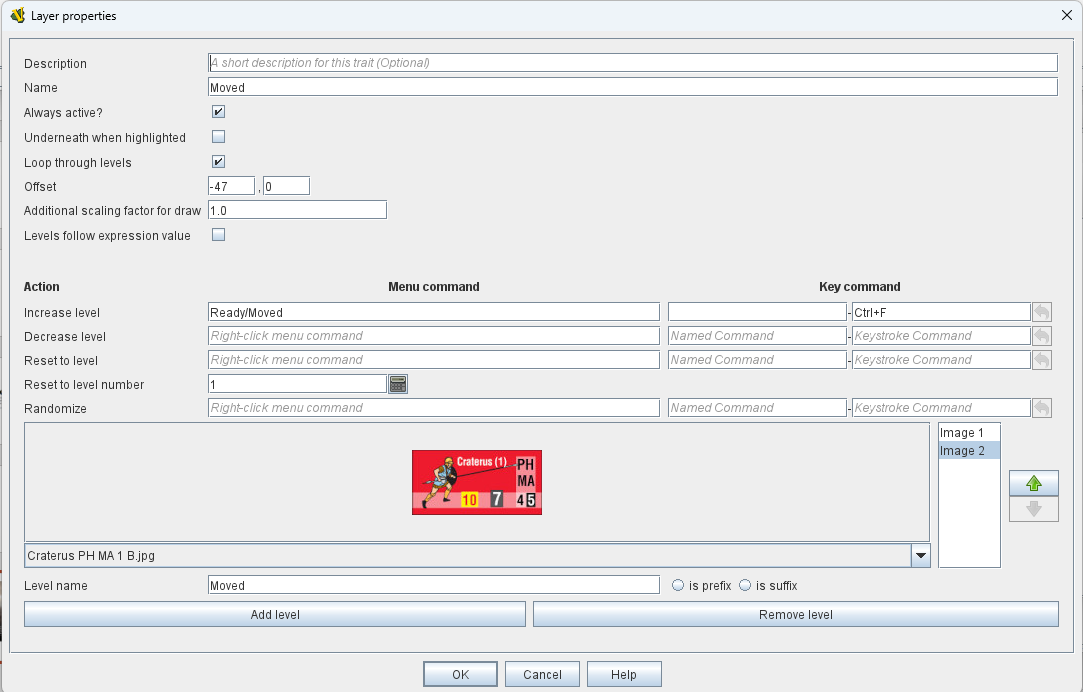
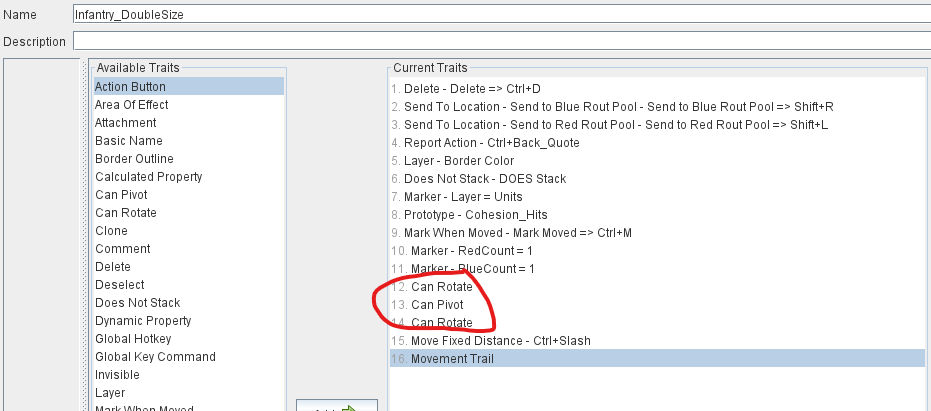
I also needed to have three options for rotate/pivot so the counter can rotate through 12 facings, Pivot 180 degrees for an about face, and offset to the flat side of the hex for column movement. If I’m remembering correctly, I also had to add the Move Fixed Distance trait to work simultaneously with the About Face command to make it work right with the offset.
This is the Prototype Definition for the double size counters.
Still, usually, to get a double sized counter to move properly as expected, it requires some human fiddling to place the piece properly when moving.