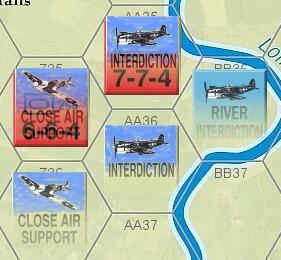
Is it possible to create a piece that is semi-transparent? Is it possible for that transparency to gradually blend from fully transparent at the bottom to fully opaque at the top?
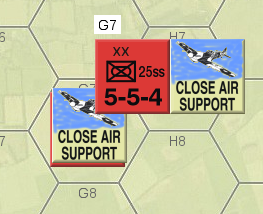
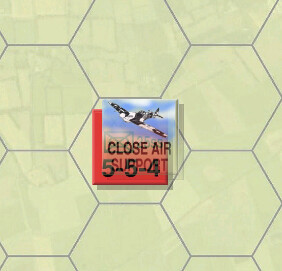
I’m trying to make a close air support counter that will show the combat factors of the unit it is stacked on top of (attacking). What I have now is on the left. What I want is on the right. (ZunTzu)
I know I can use the Non-Rectangular trait to block out the whole bottom, but I’d rather have the gradual blend. I tried using a gradient fill but Vassal showed the shape as all black, which would give me no transparency at all.
First, make sure you use PNGs for your images - or possibly SVGs but that can be harder to get right. Then, make sure the PNGs truly does have transparency (or an Alpha channel). if the PNG isn’t exactly as the Java rendered expects it to be, it can cause weird issues.
It can be, for example, that you need full 4 byte (32bit) encoding of the PNGs. That will make the on-disk images larger, but in-memory it will be the same no matter what.
Generally, I find that using Gimp quite good at doing these things. If you don’t mind fiddling around with the command line, then ImageMagick can also do - well - some magic for you What you probably need to do is to make a black’n’white gradient image, then compose that with your image using the b’n’w image as the alpha channel.
Note that Vassal renders Layer images on top of the BasicPiece image, so you may want to have no BasicPiece image.
Jardic and Christian, thank you for you quick replies.
Christian, you always talk way over my head, (woody = carpenter, remember?), but you’ve never let me down. I appreciate it.
I was using png files and Gimp and (I thought anyway) an alpha channel (whatever that is) but kept getting an all black square when I put it into Vassal’s non rectangular trait.
But if you say that that’s the way to go–that Vassal will recognize a gradient fill–then, clearly, I’m doing something wrong.
I will try again–now that I know it’s possible–and let you know.
Pixel data in the RGBA colorspace has four components, called channels, which are Red, Green, Blue, and Alpha, each of which will be one byte wide for typical images. Byte values range from 0 to 255, so each of the four channels can have 256 distinct values. The Alpha channel is not a color, but the level of transparency, with 0 being entirely transparent and 255 being fully opaque.
Disclaimer: I have never done much with gradients but should work the same.
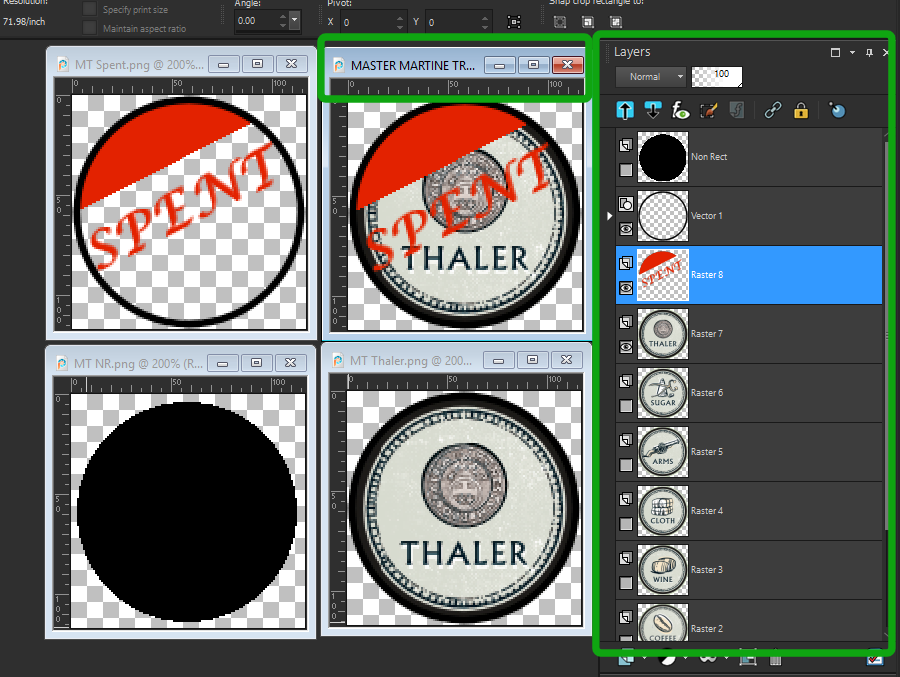
Here is an example. I just made this for a new module. Trade Goods can be used Flipped to the “spent” side. I could have made 2 images for each good. I made a transparent “Spent” image. I use Corel PaintShop Pro 2022 (Just because I started using the original program back in 1998, so I know the shortcuts. Adobe is much better But I refuse to rent software. I “can” and have used GIMP I just have not wanted to invest time in the learning curve.
Any of the more powerful PAINT programs will have the ability to use (box on the right) layers.Usually with some proprietary format. I like making a master of all the fifferent pieces/layers I will use, this makes aligning the final image up. The other 3 images shown are:
the transparent Spent Image (upper Left), the grey/white checkerboard will not show in the PNG, it is your transparent part.
. the round black circle (Lower Left) is to use vassals ‘Non-Rectangular’ feature (I personally find a completely black image works best) however just linking the regular image also works.
the Base counter image (Lower Right) I have one of these for each trade good. Other than the master image they are all saved as PNG’s.
BTW I find usually I find that I personally spend almost as much time in a paint program as I do in vassal to make a module.
Then we go to Vassal.
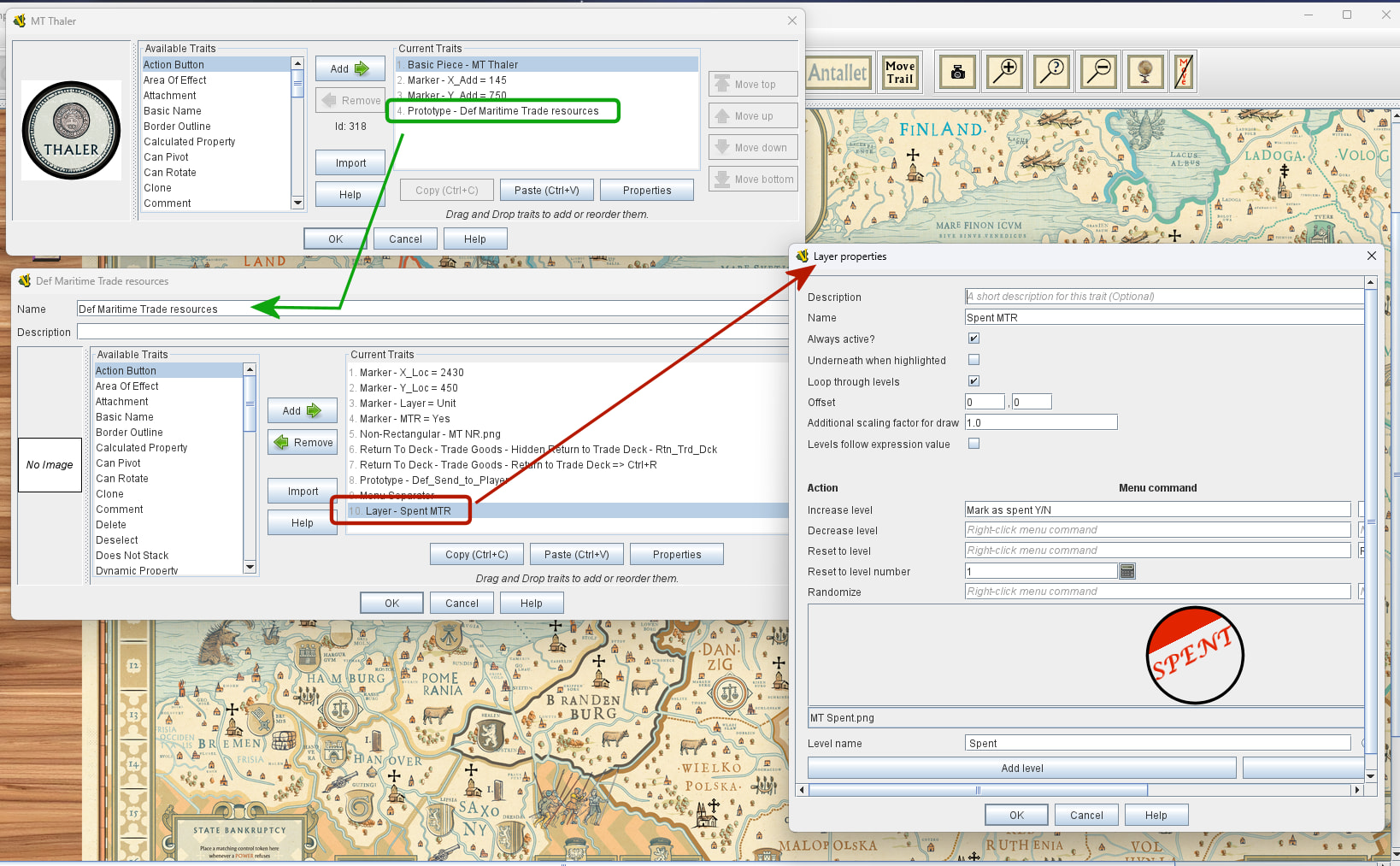
I personally like to keep as much code in prototypes as possible. It makes fixing my inevitable mistakes So much easier.So to use the Thaler as an example:
other than location data that only applies to the Thaler counter (each good is different) everything is in the prototype.
Line 10 of the prototype, has the layer. I just saw I cut off the right side of the layer command oops.
So the layer is always active, layer 1 is empty, to show the base image.
layer 2 is the transparent “Spent” Image.
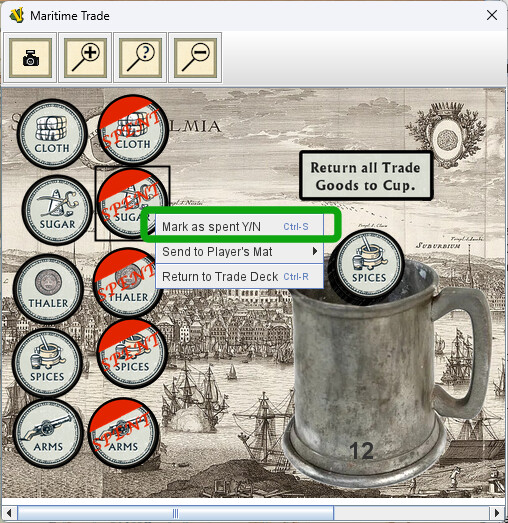
‘Mark as Spent Y/N’ command cycles the spent into and out of view.
I could not have done it without you. The support you give to this forum is as impressive as it is invaluable.
And Kevin, I use PhotoPaint from CorelDraw 9. I’m not about to rent a drawing program either. I’m very (well kinda actually) comfortable with PhotoPaint and learning Gimp is slow going.
Rob, that video was VERY helpful. I’m just getting my feet wet with Gimp and it’s daunting.
Kevin and Rob: Yup, I easily spend as much time fighting in the drawing program as I do fighting in Vassal.
You’re welcome. I am not a professional or even an accomplished graphics artist. I downloaded GIMP after watching Joel Toppen’s VASSAL tutorial videos and started from the ground up. I’ve gotten good enough that if I need to do something tricky and out of the norm, I can follow a good YouTube instructional video to accomplish what I need.
Joel Toppen’s videos are equally important to learn how to get started with GIMP as they are Vassal.
Everyone, please feel free to add such videos to that page - it will help everyone find the information easier and faster.
Doing graphics is generally tedious - which is why I try to avoid it (I tend to rely on LaTeX - with my package wargame to get the graphics right).
With Gimp it is possible to set-up automatised workflows if one is doing the same thing over and over again. It is a little technical to do, but will pay off in the long run. For example, inspired by a recent post on BGG, I made a small plug-in that will take a multi-layer Gimp image and make a draft Vassal module from it:
encodes a lot of common piece image operations, such as rounding corners, adding drop shadows, adding a border, adding a bevel effect, and so on.
Another nice tool is Inkscape - for drawing Scalable Vector Graphics (SVG). It can likewise also be scripted - for example, the Counter Sheet Extension by Pelle Nilsson can help make counters from simple input. Pelle has also make a Hex map extension for Inkscape, but I believe it is less mature and less maintained.
That’s a great resource, having all the Vassal tutorials in one place.
I’ll check out the Gimp references but the automated stuff is probably beyond my ken. I’ll see.
I’ll be uploading my updated D-Day module today with the Oblique Class in your ak folder. And YES, it will have the credits and information in a ReadMe file in the folder. It will mean something to guys like you. I also included a file (for guys like me) that explains where to put the ObliqueHexGrid lines in the BuildFile.
Your step-by-step instructions on how to load a module into the new library are invaluable.
Did you change to user <observer> when you saved the set-ups? Vassal prompts for passwords (empty, but still) for user Frank as Solitaire Player.
To remedy, load each .vsav in the module, switch to <observer>, save game
Then update the internal saves from the saves you just made.
(I also have a “secret” way of hacking the .vsav to remove or alter users - but better not talk to much about it as it may enable people to “cheat” )
The file ak/Buildfile changes for Oblique.png seems corrupted.
Thank you for the kind words in ak/Readme.txt. Perhaps you should remove the Wiki formatting to make it easier to read:
To future VASSALers,

I copied this folder from a kind gentleman by the name of Christian Holm Christensen who gave it to me so I could use the oblique numbering system without having VASSAL throw an "Obsolete Code" warning every time the module would load. He recommended that I include directions to the source code should it become necessary to update this again in the future. So, courtesy of Christian...

"Note, the source code for the class is the one available at

  https://gitlab.com/wargames_tex/vassal_my_contrib/-/tree/master/oblique

- perhaps you want to make a note somewhere so that people may re-compile the code if needed, thus making the module more robust wrt. upstream changes in VASSAL."

Frank Jordan 6/22/25
Note, I changed the URL because it is a better reference with some additional information.
The information about how to make the binary of the custom code, and where to find the source code, should be important to anyone - if a maintainer goes AWOL - e.g. @wga - and the module needs to be updated, then it is good that the information is there so that the module itself does not goes stagnant.
I should have run the module by you before posting it. Next time.
Okay, you lost me. I’m in the Module Editor. How do I “switch to ” while I’m editing the module? I know I can choose Observer when I start a game module outside of Editor mode. Are you saying that doesn’t happen when you open 3.1.0?. I have all the scenario vsav files in my computer but I don’t know how to “load each .vsav in the module, switch to <observer>, save game.”
(If you can do this on the sly, please do. You’re name is on the owner list so you’ve got the permission. You know what you’re doing. I don’t.)
The file ak/Buildfile changes for Oblique.png seems corrupted.
You’re talking about the png screenshot right? It’s a picture of text. It shows up okay as far as I can see.
Carpenter, Christian. Carpenter. I don’t know what Wiki formatting is. I don’t see anything but readable text. If I saw a bunch of dots and squiggles amid the words I would definitely try to find a way to remove them. I see none of that. I have no problem reading the txt file. What do you see and how do I get rid of it?
Well, thanks for doing that. I didn’t see it. I’ll have to look again.
Should I change it in my Afrika Korps, Battle of the Bulge, and Waterloo modules too? I’ve used your ak folder in all of those too.
Back to D-Day…So now that brings me to this question: Can this stuff be corrected without me having to load another module with another release number? I don’t want to have to load 3.1.1 already. Can I pull what I just loaded, make the corrections (with your help), and reload it with the same 3.1.0 number?
Hey Christian, I do appreciate the critique and the help.
I can answer this question for you: no, you cannot make changes to an already-uploaded version of a module. You will need to change the version number to upload any fixes.
It is not in the editor that you need to switch to <observer>, but in the player.
For each .vsav file
Open the module as you normally would when playing the game
When asked for Select play mode in the Wizard, select Load saved game
When asked to specify the saved game, navigate to the .vsav file and press Finish
When in module and save file is fully loaded, press the Retire button in the tool-bar and select to become <observer>
Then save the game by File→Save Game… - you may want to save to a new file.
Now open the module in the editor
For each Predefined Setup double click it to bring up its properties.
Press Select and find the .vsav file you made above
Press OK
Update the version number (say 3.1.1)
Now save the module with File→Save Module
The file ak/Buildfile changes for Oblique.png seems corrupted.
You’re talking about the png screenshot right? It’s a picture of text. It shows up okay as far as I can see.
Yes, that file. I comes back as corrupt. However, passing it through convert fixes it up.
What I see is the below - notice the [url=...][c]....[/c][/url] - that’s the Wiki formatting I’m talking about. Maybe you don’t see it because what ever app you use doesn’t show the plain-text, but interprets it for you.
To future VASSALers,

I copied this folder from a kind gentleman by the name of Christian Holm Christensen who gave it to me so I could use the oblique numbering system without having VASSAL throw an "Obsolete Code" warning everytime the module would load. He recommended that I include directions to the source code should it become necessary to update this again in the future. So, courtesy of Christian...

"Note, the source code for the class is the one available at [url=https://gitlab.com/wargames_tex/afrikakorps_tex/-/tree/master/ak?ref_type=heads][c]https://gitlab.com/wargames_tex/afrikakorps_tex/-/tree/master/ak[/c][/url] - perhaps you want to make a note somewhere so that people may re-compile the code if needed, thus making the module more robust wrt. upstream changes in VASSAL."

Frank Jordan 6/22/25
Whenever you feel like it - no rush. It is just a slightly better reference and one that will probably live a little longer. It’s not like the old thing is missing a 4x4 - more like the new one has that final sweep-panel that just makes it a tad nicer to look at
BTW, there’s a Pull Request that will add the Oblique hex grid numbering to Vassal proper. If that gets accepted, then you won’t need that code anymore.
Release numbers are cheap Sort of like adding another nail in a plate on the roof because the apprentice got it a tad crooked
 What you probably need to do is to make a black’n’white gradient image, then compose that with your image using the b’n’w image as the alpha channel.